This guide covers the Direct assets import template (assets-direct-template.xlsx). Use it to bulk-add direct investments to Delio. It walks through every column in the template, explains accepted values, and flags anything that can cause a failed import.
Before you start
- Navigate to Portfolio in the main navigation.
- Click Actions › Data Import.
- Select Assets from the left-hand menu.
- Click the Direct template card to download
assets-direct-template.xlsx. - Open the file — your data goes on the Direct - Assets sheet. Do not edit the README sheet or alter any column headers.
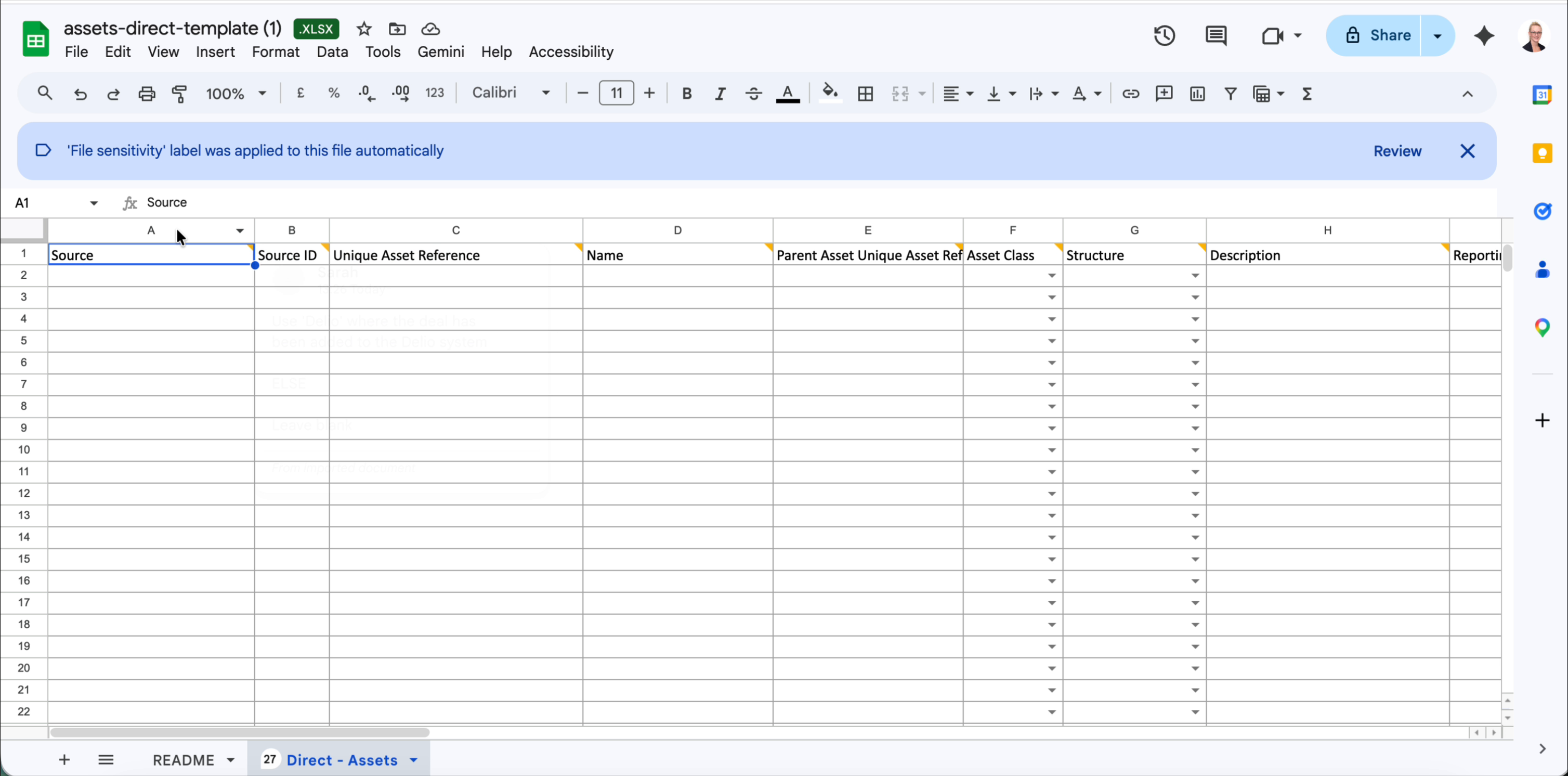
Column reference
The Direct assets template contains 28 columns (A–AB). It shares its opening columns with the Fund template but does not include fund-specific fields such as Fund Type, Subscription, or Fund Investment Assignment.
Identity & structure
| Col | Column name | Required | Notes |
|---|---|---|---|
| A | Source | Optional | The name of the data source system this record originates from, if applicable. |
| B | Source ID | Optional | The record's identifier in the source system. Useful for reconciliation. |
| C | Unique Asset Reference | Required | Your internal unique identifier for this asset. Must be unique across all rows in the file and must not already exist in the platform. |
| D | Name | Required | The display name of the asset as it will appear in Delio. |
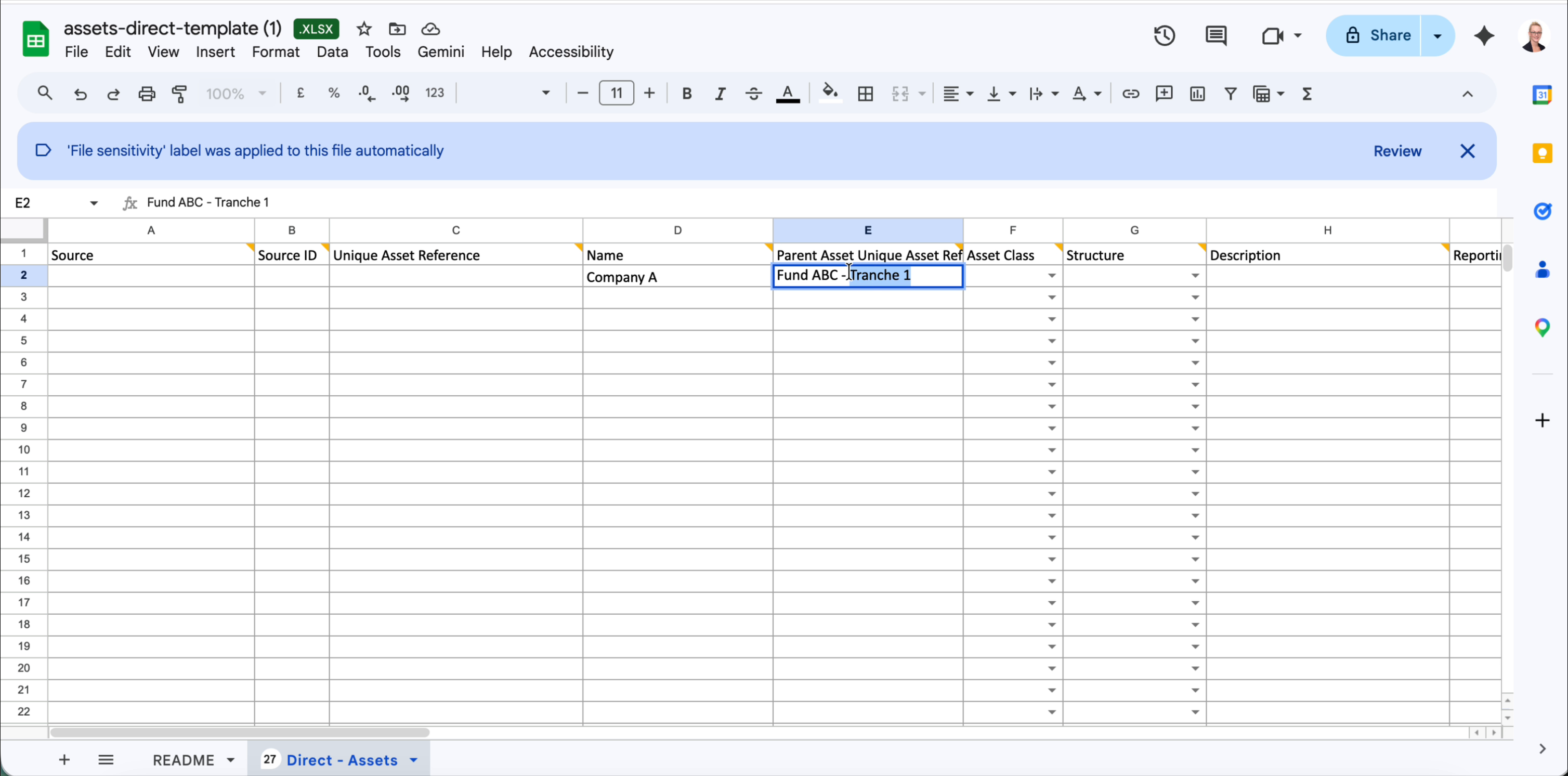
| E | Parent Asset Unique Asset Reference | Optional | If this direct investment sits beneath a parent asset (e.g. a co-investment tranche), enter the parent's Unique Asset Reference here. The parent must already exist in the platform before you import. |
| F | Asset Class | Optional | Select from the dropdown in the template. |
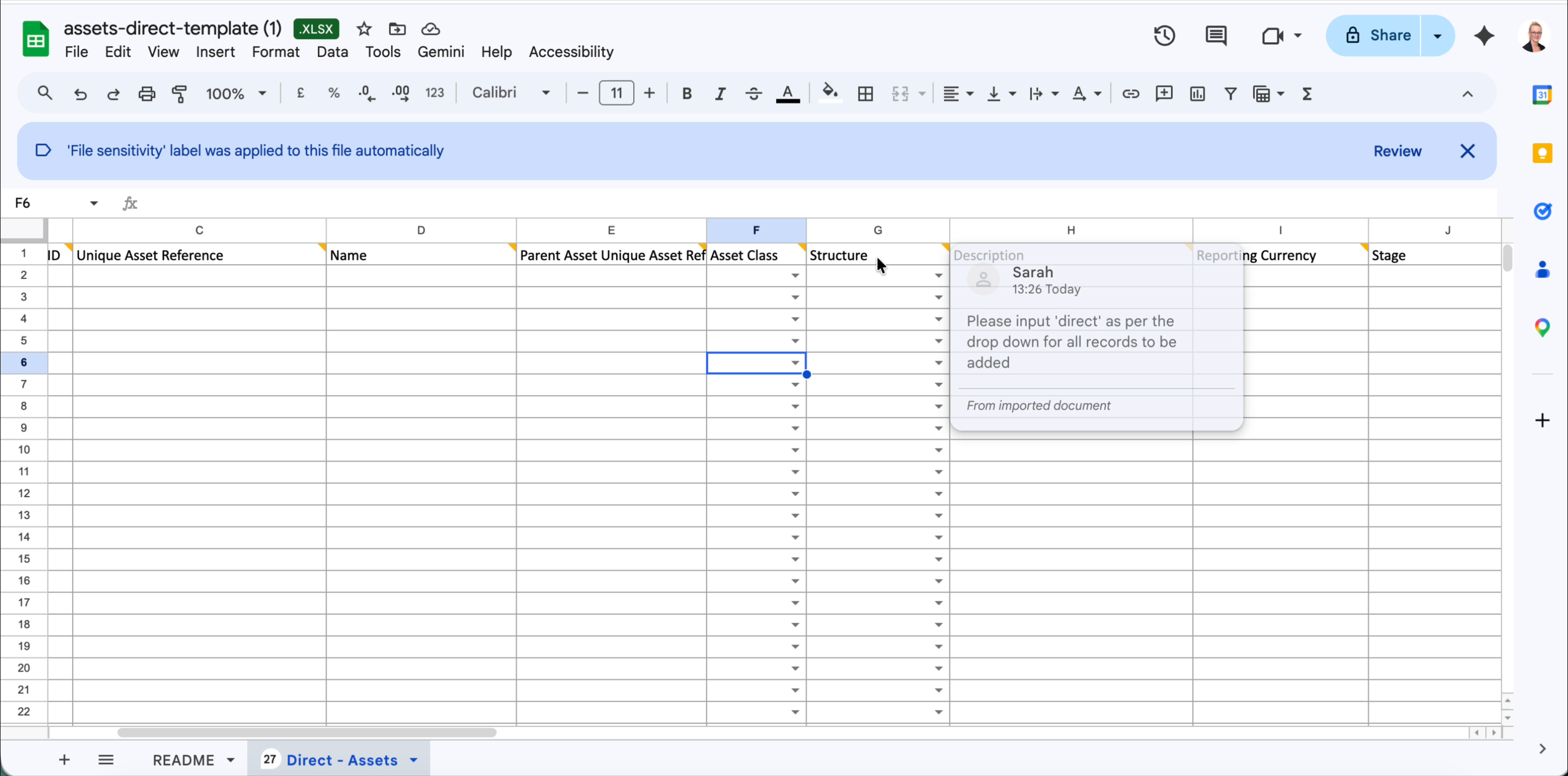
| G | Structure | Required | Must be set to direct for all rows in this template. Select from the dropdown — do not type the value manually. |
| H | Description | Optional | Free-text description of the asset. |
Financials & classification
| Col | Column name | Required | Notes |
|---|---|---|---|
| I | Reporting Currency | Required | ISO currency code, e.g. USD, GBP, EUR. |
| J | Stage | Optional | Select from the dropdown: Pre Seed, Seed, Start Up, Early Stage Ventures, Growth, Pre IPO, Public, Distributed, Special Situations. |
Sector allocations
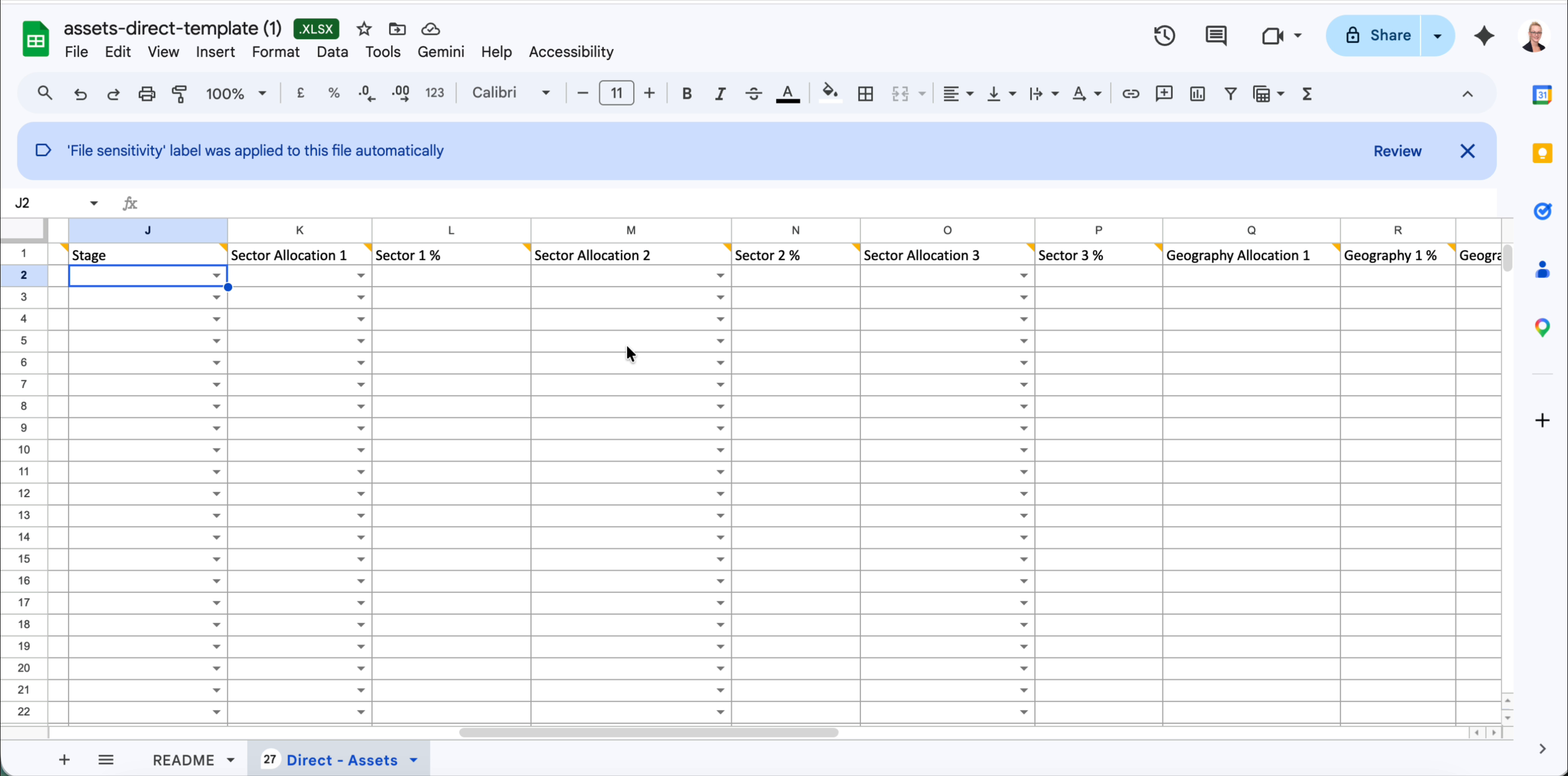
Up to three sector allocations are supported, each requiring a sector name and a percentage. All percentages across the three allocations should add up to 100 if used.
| Col | Column name | Required | Notes |
|---|---|---|---|
| K | Sector Allocation 1 | Optional | Select from the dropdown. |
| L | Sector 1 % | Optional | Numeric percentage, e.g. 40. Required if Sector Allocation 1 is filled. |
| M | Sector Allocation 2 | Optional | Select from the dropdown. |
| N | Sector 2 % | Optional | Numeric percentage. Required if Sector Allocation 2 is filled. |
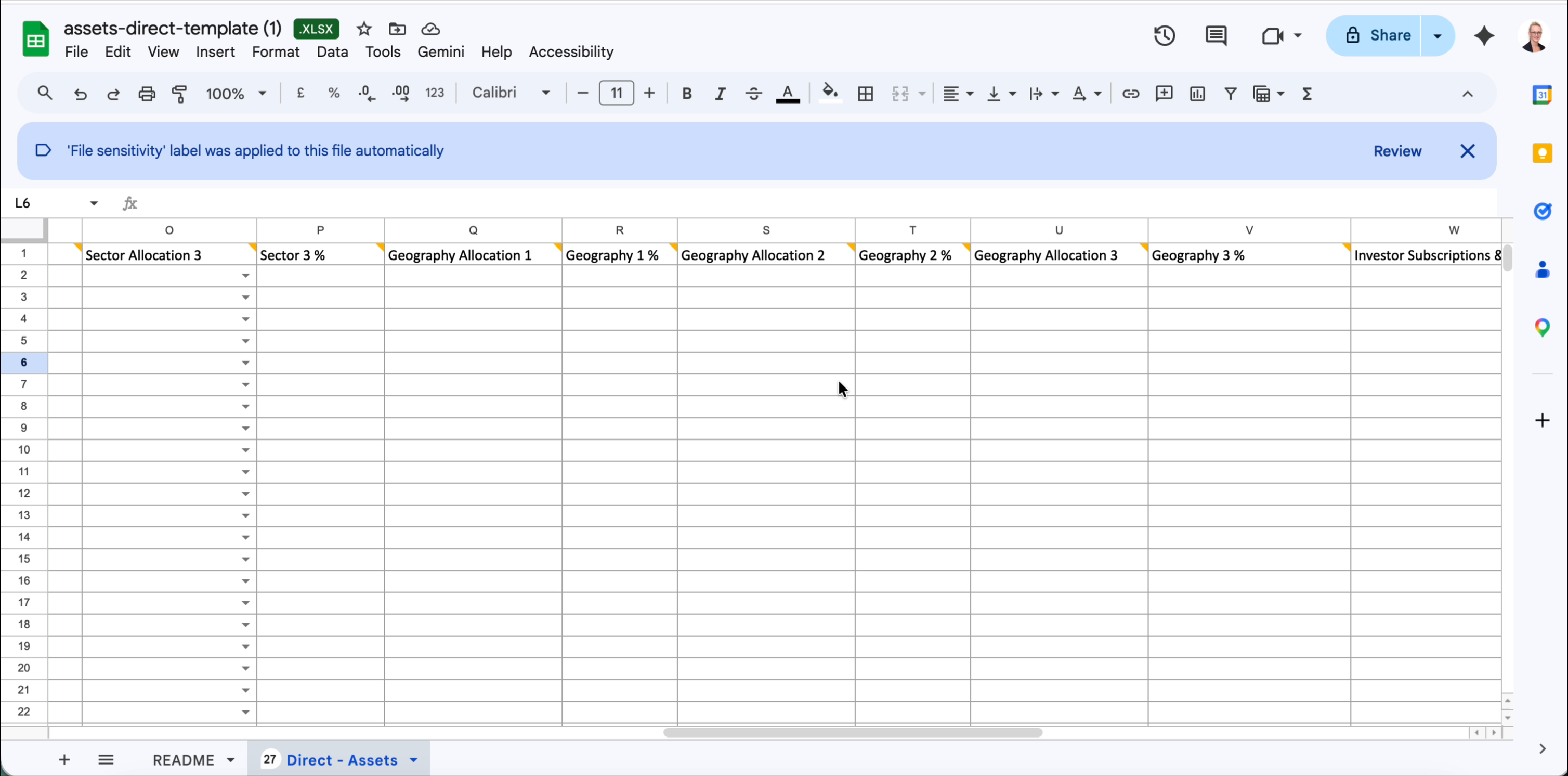
| O | Sector Allocation 3 | Optional | Select from the dropdown. |
| P | Sector 3 % | Optional | Numeric percentage. Required if Sector Allocation 3 is filled. |
Geography allocations
Up to three geography allocations are supported. Geography values must match those configured in Portfolio settings.
| Col | Column name | Required | Notes |
|---|---|---|---|
| Q | Geography Allocation 1 | Optional | Must match a geography value configured in Portfolio settings. |
| R | Geography 1 % | Optional | Numeric percentage. Required if Geography Allocation 1 is filled. |
| S | Geography Allocation 2 | Optional | Must match a geography value configured in Portfolio settings. |
| T | Geography 2 % | Optional | Numeric percentage. Required if Geography Allocation 2 is filled. |
| U | Geography Allocation 3 | Optional | Must match a geography value configured in Portfolio settings. |
| V | Geography 3 % | Optional | Numeric percentage. Required if Geography Allocation 3 is filled. |
Investor activity & valuations
| Col | Column name | Required | Notes |
|---|---|---|---|
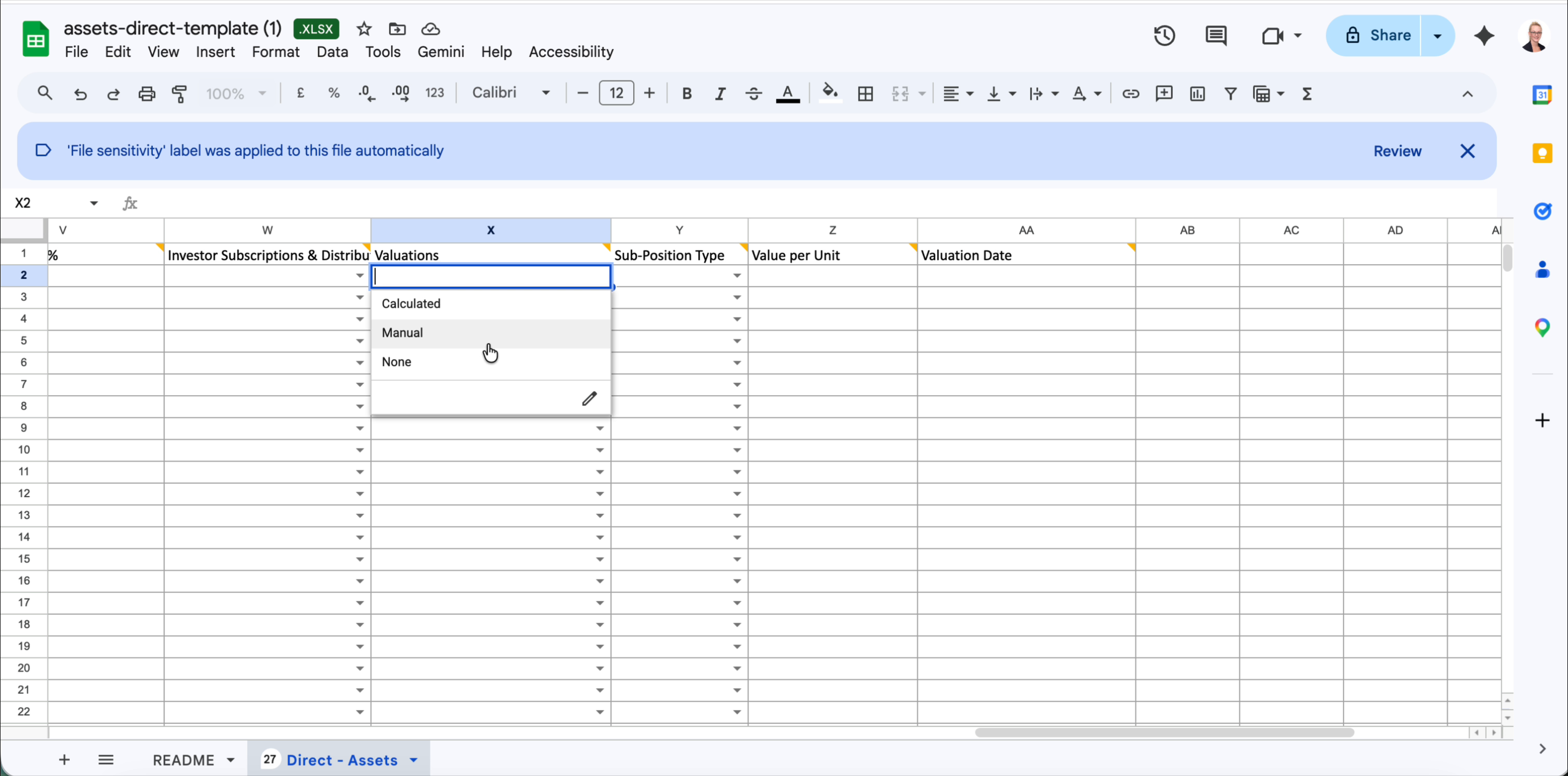
| W | Investor Subscriptions & Distributions % | Optional | Numeric percentage. The proportion of subscriptions and distributions attributed to investors. |
| X | Investor Subscriptions & Distributions | Optional | Yes or No. Set to Yes to track investor-level subscription and distribution activity against this asset. |
| Y | Valuations | Optional | Select from the dropdown: Calculated, Manual, or None. Controls how the asset's valuation is determined in Delio. |
| Z | Sub-Position Type | Optional | Select from the dropdown: Class, Investment, or n/a. |
| AA | Value per Unit | Optional | Numeric value. Used when Valuations is set to Manual. |
| AB | Valuation Date | Optional | Date in YYYY-MM-DD format. |
Uploading your completed file
- Save your populated file as
.xlsx— do not convert to CSV. - Return to Portfolio › Actions › Data Import › Assets.
- Drag your file into the Upload area, or click it to browse.
- Delio will validate the file. Any rows with errors will be listed — correct them and re-upload.
Was this article helpful?
That’s Great!
Thank you for your feedback
Sorry! We couldn't be helpful
Thank you for your feedback
Feedback sent
We appreciate your effort and will try to fix the article