Data Import lets you bulk-load portfolio data into Delio using pre-formatted Excel templates. Rather than creating records one by one, you download the relevant template, populate it with your data, and upload it back — Delio validates the file and flags any errors before saving.
How to open Data Import
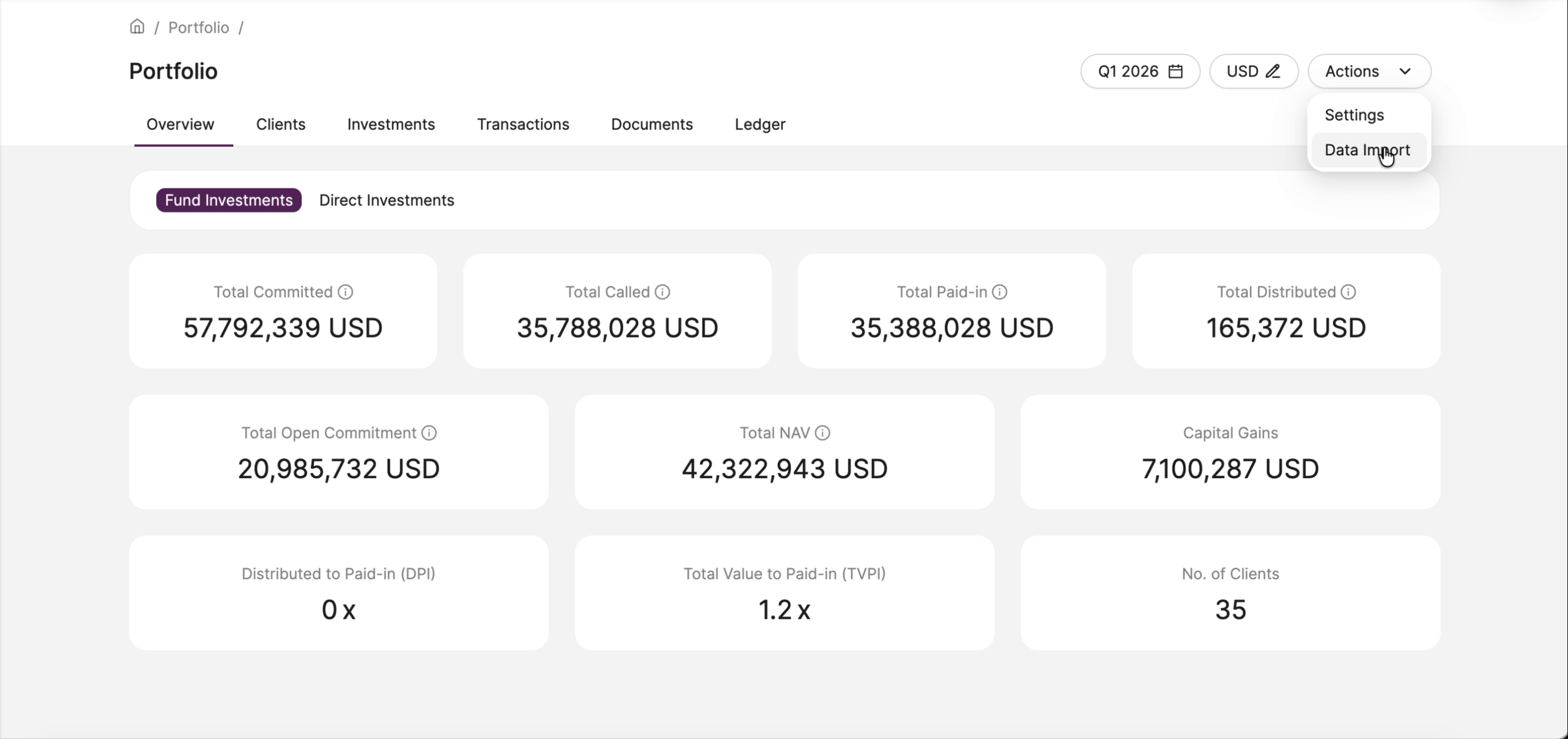
Data Import is accessed from within the Portfolio feature. To get there:
- Navigate to Portfolio in the main navigation.
- Click the Actions button in the top-right corner.
- Select Data Import from the dropdown.
The Data Import panel
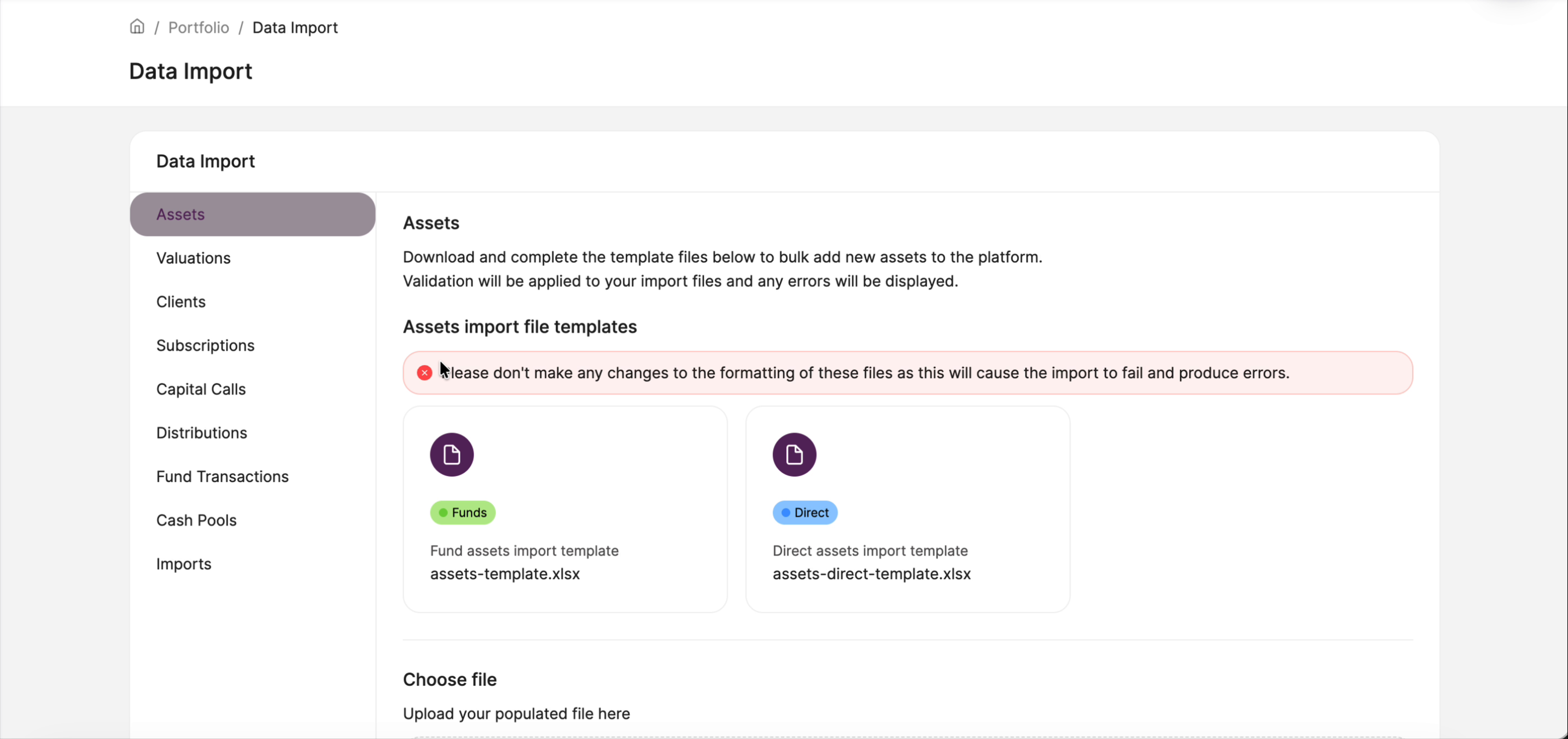
The Data Import panel opens with a left-hand menu listing every importable data type. Select a category to see its available templates and the file upload area. Each category follows the same pattern: download a template, fill it in, then upload the completed file.
Available import categories
Each category has a dedicated guide covering the template columns, required fields, and common errors. Select the one you need below.
| Category | What it imports | Templates | |
|---|---|---|---|
| Assets | Bulk-add fund or direct investments to the portfolio. | FundsDirect | Fund guide › Direct guide › |
| Valuations | Upload valuation data for existing assets across all investment structures. | All structures | View guide › |
| Clients | Add new investors to the platform in bulk. | All structures | View guide › |
| Subscriptions | Import subscription records for fund or direct investments. | FundsDirect | Fund guide › Direct guide › |
| Capital Calls | Upload capital call records for fund investments. | Funds | Fund guide › |
| Distributions | Import distribution records across all investment structures. | All structures | View guide › |
| Fund Transactions | Bulk-load transaction records for fund-based investments. | All structures | View guide › |
| Cash Pools | Import cash pool data applicable to all investment structures. | All structures | View guide › |
How each import works
The process is the same regardless of which category you are importing:
- Select the category from the left-hand menu.
- Click the template card to download the
.xlsxfile. - Open the file and add your data rows — do not alter any existing formatting.
- Return to Delio and drag your completed file into the Upload area, or click the area to browse for it.
- Delio validates the file. Any errors are displayed on screen — correct them and re-upload.
Viewing past imports
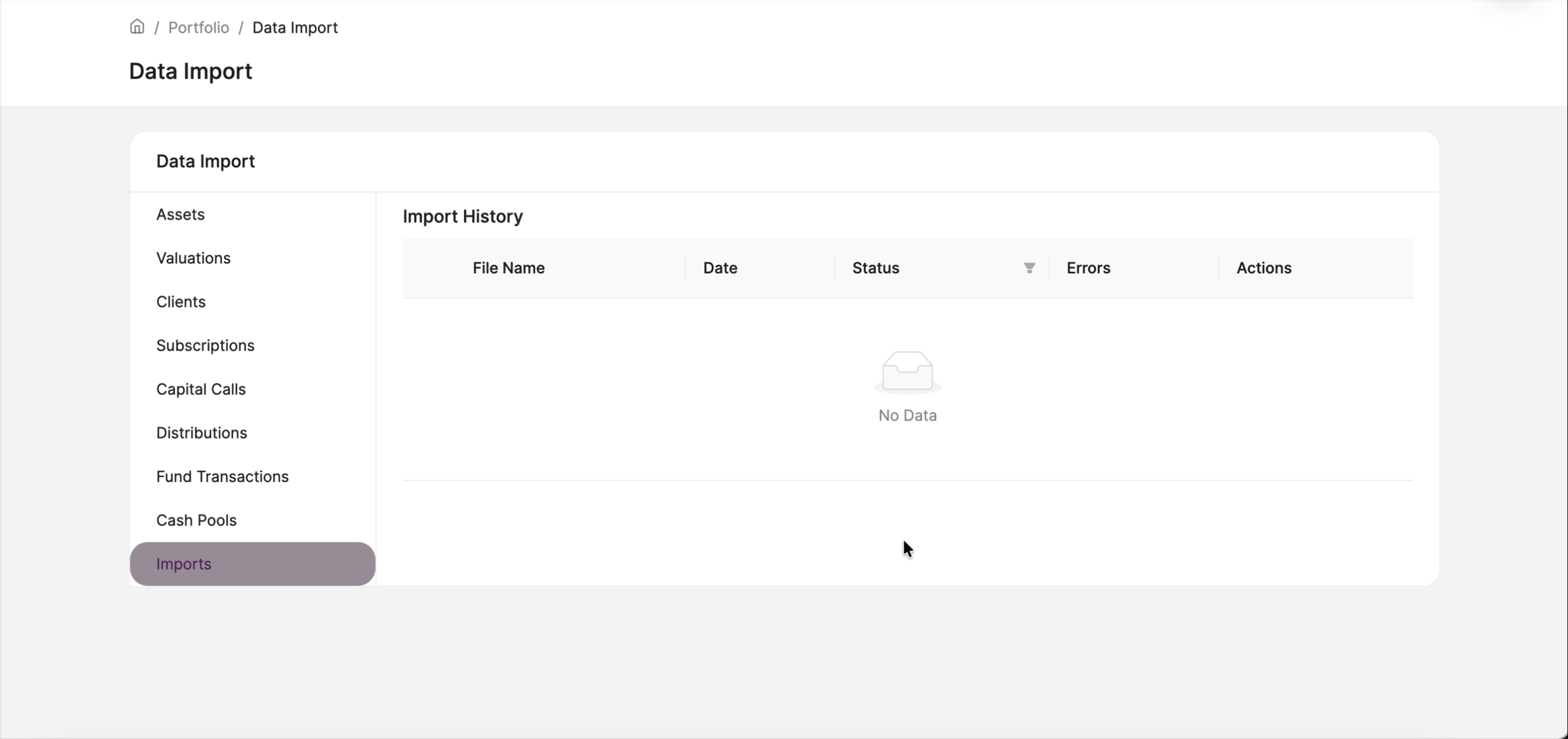
The Imports section at the bottom of the left-hand menu shows a history of all files previously uploaded. The table displays the file name, upload date, validation status, and any errors, so you can quickly identify and reprocess any failed imports.
Was this article helpful?
That’s Great!
Thank you for your feedback
Sorry! We couldn't be helpful
Thank you for your feedback
Feedback sent
We appreciate your effort and will try to fix the article