The Add Transaction feature lets you record investment activity against any asset in your portfolio. Transactions are applied at the client level, updating each investor's position and portfolio metrics in real time. The transaction types available depend on how the asset is configured — direct assets use Investment and Distribution, while fund assets use Subscription, Capital Call, and Fund Distribution.
Before you begin
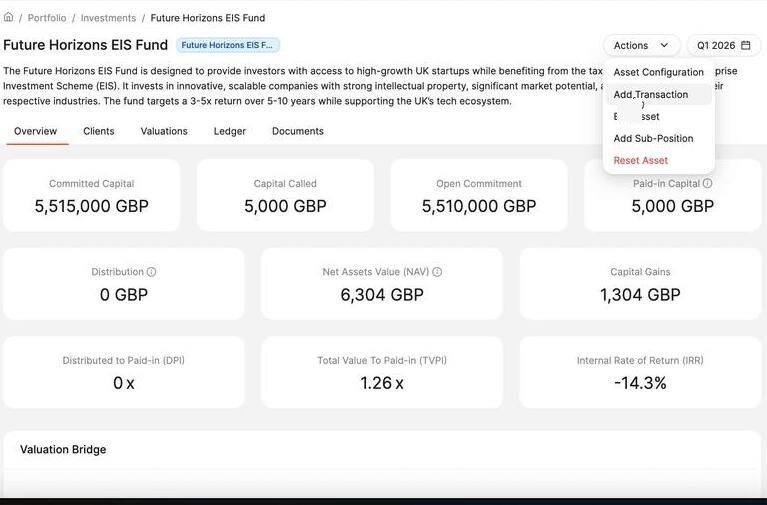
The Add Transaction option only appears on an asset if that asset has the subscriptions and distributions toggle enabled. If you cannot see the option in the Actions menu, check the asset configuration in Actions > Edit Asset.
To add transactions from the Portfolio-level Transactions tab, you will also need the appropriate permissions for your account. Contact your administrator if the Add Transaction button is not visible there.
Where to find it
You can start a new transaction from two places:
From any individual asset page — click the Actions button in the top-right corner and select Add Transaction.
From the Portfolio > Transactions tab — click the Add Transaction button on the right side of the page header.
Step 1 — Select the asset and transaction type
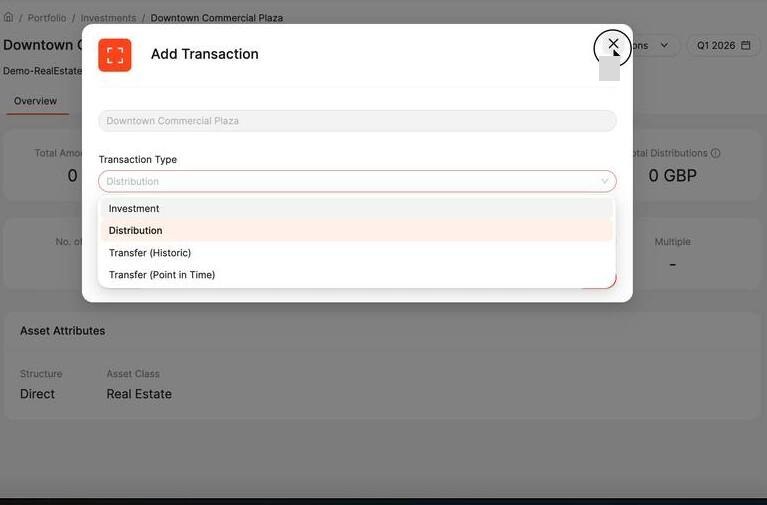
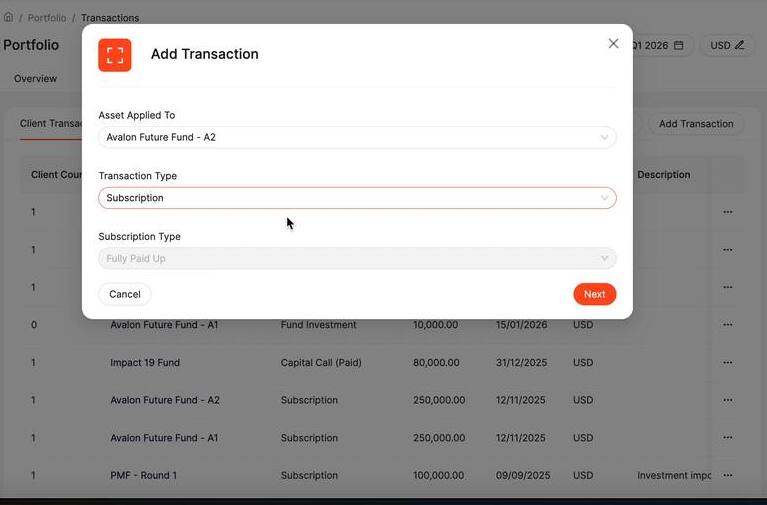
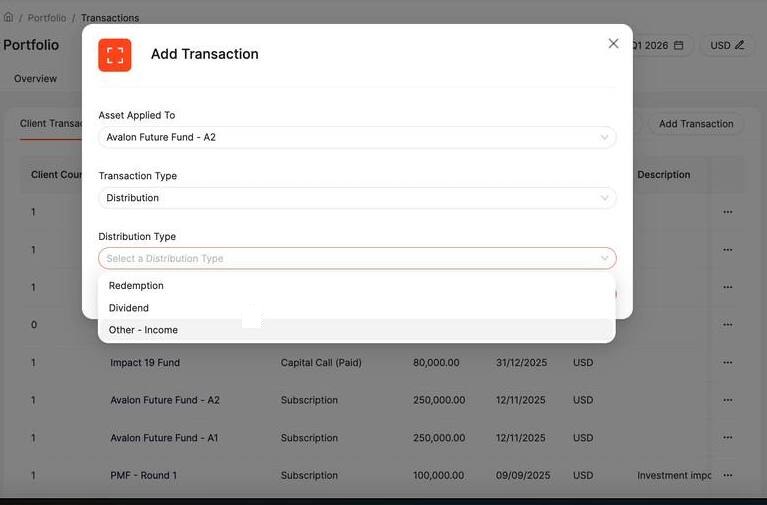
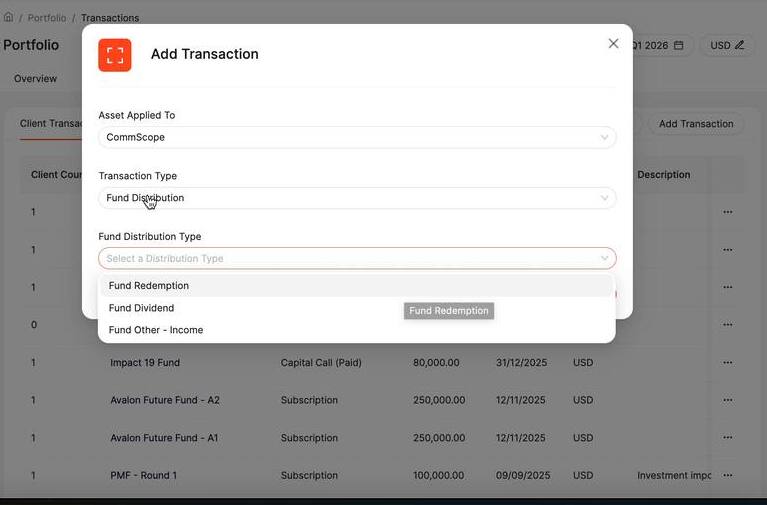
A modal appears first. Use it to specify the asset and transaction type before the full form loads. The types presented depend on the asset selected — only types enabled in that asset's configuration will appear.
In the Asset Applied To field, select the asset. When launching from an individual asset page, this is pre-filled.
Choose a Transaction Type from the second dropdown.
If the selected type has sub-types (such as Subscription Type or Distribution Type), a third dropdown appears — select the appropriate sub-type.
Click Next to proceed to the full transaction form.
Transaction types at a glance
Records a direct investment into an asset. Enter by share count or by total cash value.
Records an initial or follow-on investment into a fund asset. The subscription types available are defined by the asset configuration. Sub-types include Fully Paid Up, Draw Down and Units Assigned.
Records a drawdown from a fund manager. Allocates across selected clients based on their committed capital and a percentage call.
Records a cash return to investors. Sub-types: Redemption, Dividend, Other – Income. Works identically for both direct and fund assets.
Used for more complex structures with sub-positions or feeder funds. Same forms as Distribution but records fund cash flows. Sub-types: Fund Investment, Fund Redemption, Fund Dividend, Fund Other – Income.
Investment form (direct assets)
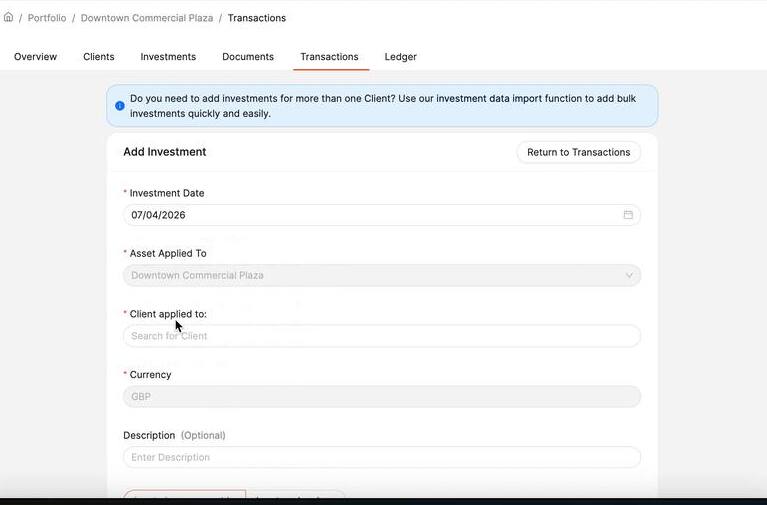
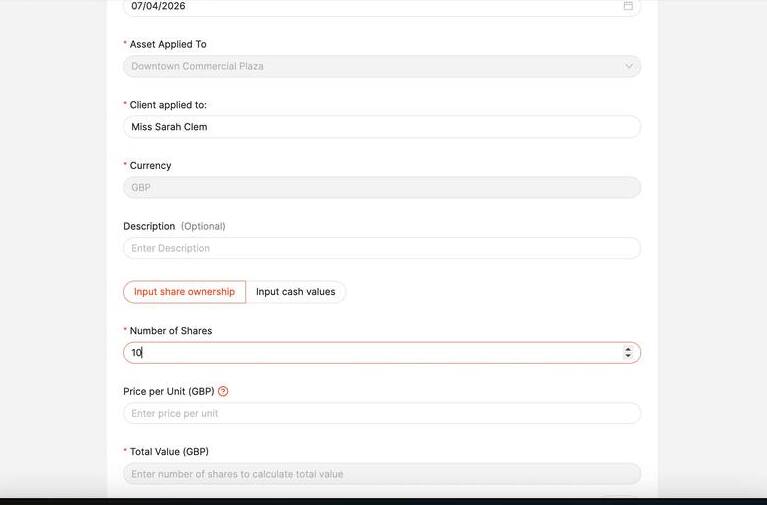
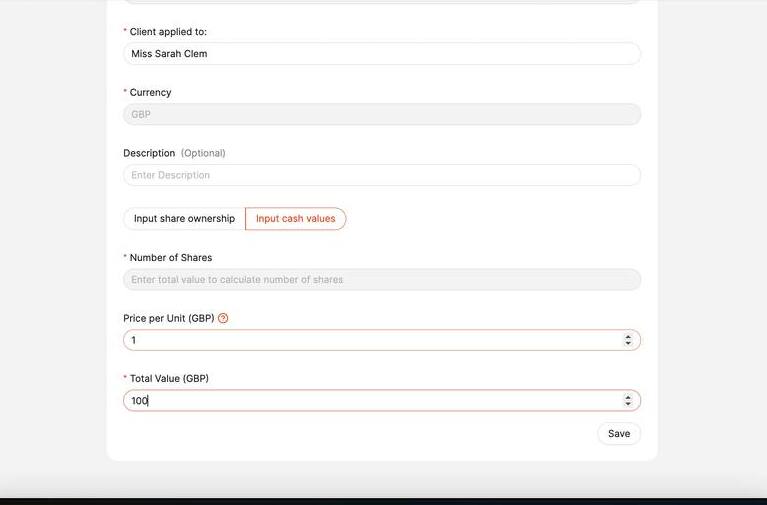
The Investment transaction type is used for direct assets. After selecting Investment and clicking Next, the Add Investment form loads.
| Field | What to enter | Required? |
|---|---|---|
| Investment Date | The date the investment was made. Defaults to today. | Required |
| Asset Applied To | Pre-filled from Step 1. | Required |
| Client Applied To | Search for and select the client making the investment. | Required |
| Currency | Inherited from the asset. Read-only. | Auto-filled |
| Description | Internal note about this investment. | Optional |
| Number of Shares | Enter directly when using "Input share ownership". Calculated automatically when using "Input cash values". | Conditional |
| Price per Unit | The price per share at the time of investment. | Required |
| Total Value | Enter directly when using "Input cash values". Calculated automatically when using "Input share ownership". | Conditional |
Subscription form (fund assets)
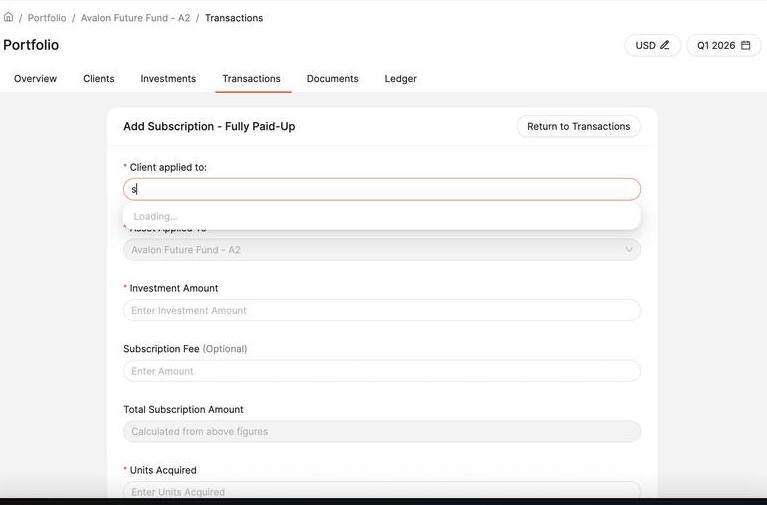
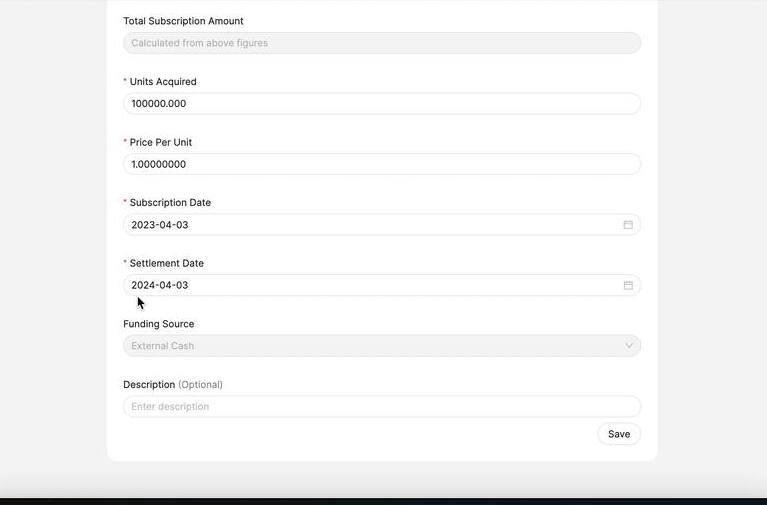
After selecting Subscription and clicking Next, the subscription form loads. Required fields are marked with a red asterisk.
| Field | What to enter | Required? |
|---|---|---|
| Client Applied To | Search for and select the client(s). Any client on the platform can be selected. Multiple clients can be added — each receives a separate transaction record. | Required |
| Asset Applied To | Pre-filled from Step 1. | Required |
| Investment Amount | The amount invested by the client. | Required |
| Subscription Fee | Any fee charged on this subscription. Captured for record-keeping but does not impact asset-level reporting. | Optional |
| Total Subscription Amount | Calculated automatically: Investment Amount + Subscription Fee. | Auto-filled |
| Units Acquired | Number of units the client receives. Always required. For non-unitised assets, set Price Per Unit to 1 so the system can handle all future valuations, redemptions, and distributions in monetary amounts. | Required |
| Price Per Unit | The price at which units are acquired. Set to 1 for non-unitised assets. | Required |
| Subscription Date | The date the subscription was made. Can differ from Settlement Date where needed, though both are often the same. | Required |
| Settlement Date | The date funds settle. | Required |
| Funding Source | Always External Cash — representing money coming in from outside the asset. | Auto-filled |
| Description | Internal note about this transaction. | Optional |
Capital Call form
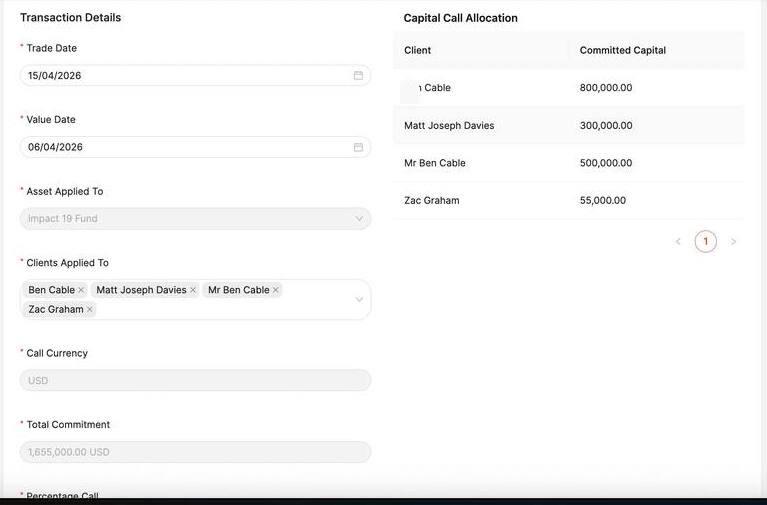
The Capital Call form has a two-panel layout — Transaction Details on the left, and a live Capital Call Allocation panel on the right. As you select clients, their committed capital populates the allocation panel automatically, so you can verify the call before saving.
Only clients who have an existing subscription on the asset are available to select — you cannot call capital from a client who has not already subscribed.
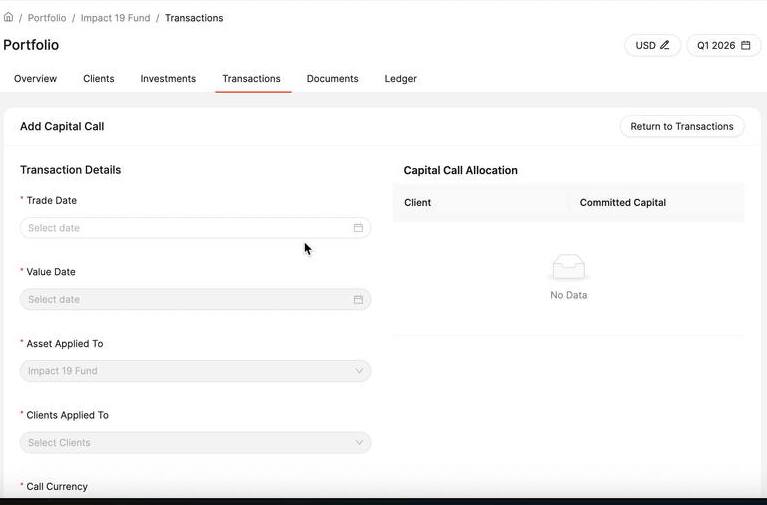
| Field | What to enter | Required? |
|---|---|---|
| Trade Date | The date the capital call is issued. | Required |
| Value Date | The date the units are valid / funds are expected. | Required |
| Asset Applied To | Pre-filled from Step 1. | Required |
| Clients Applied To | Select one or more subscribed clients. Use Select All to include every investor in the fund. The Allocation panel updates immediately. | Required |
| Call Currency | Inherited from the asset. Read-only. | Auto-filled |
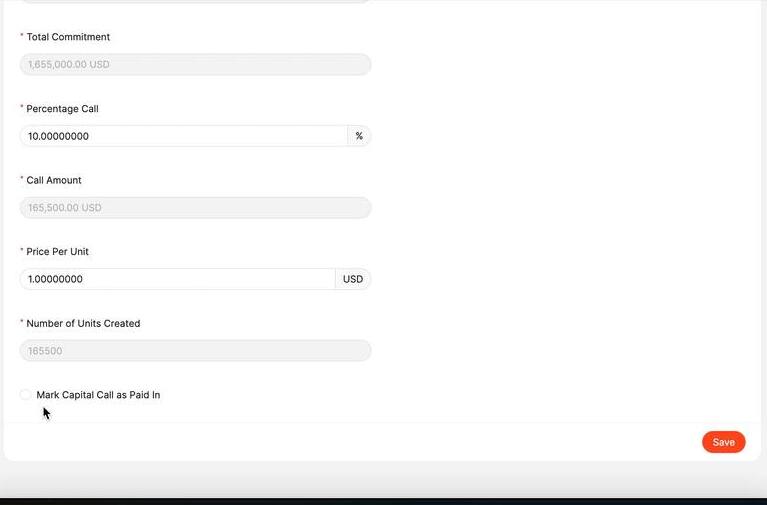
| Total Commitment | Sum of committed capital across all selected clients. Auto-calculated from the Allocation panel. | Auto-filled |
| Percentage Call | The percentage of committed capital being called (e.g. 10 for 10%). Applied against each selected client's individual commitment. | Required |
| Call Amount | Calculated automatically: Total Commitment × Percentage Call. | Auto-filled |
| Price Per Unit | The price at which new units are issued to investors. | Required |
| Number of Units Created | Calculated automatically: Call Amount ÷ Price Per Unit. | Auto-filled |
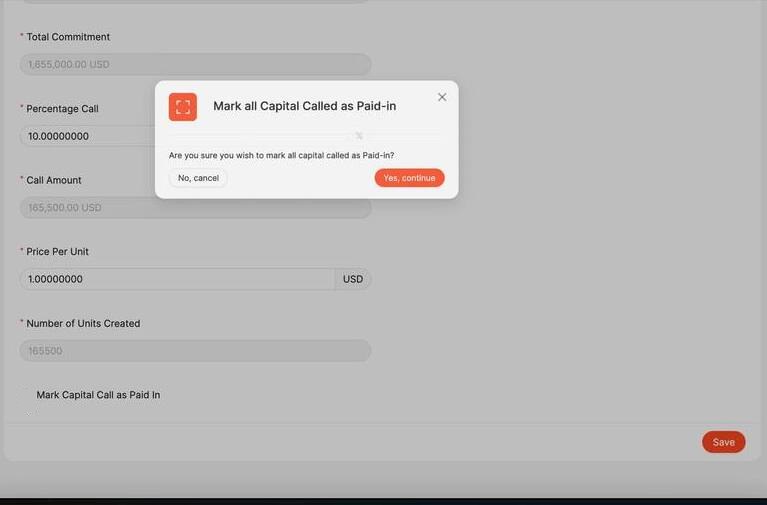
| Mark Capital Call as Paid In | Tick to simultaneously record the call as paid. If left unticked, the call is saved as unpaid and open commitment remains outstanding until marked paid separately. | Optional |
Distribution and Dividend forms
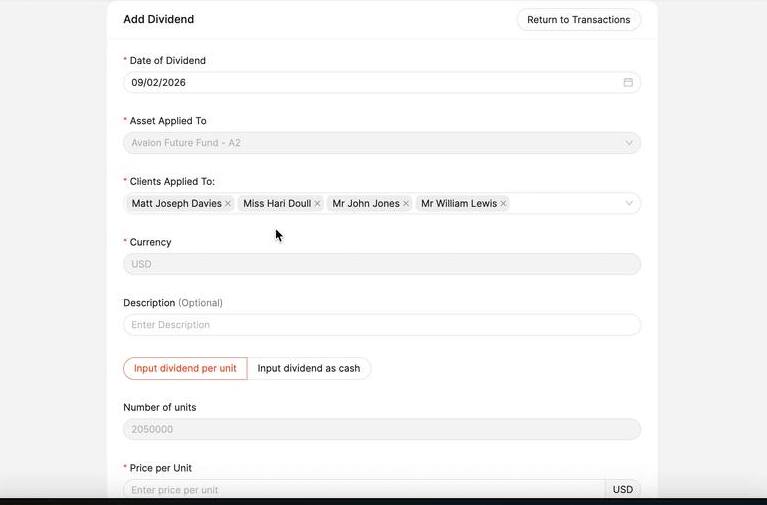
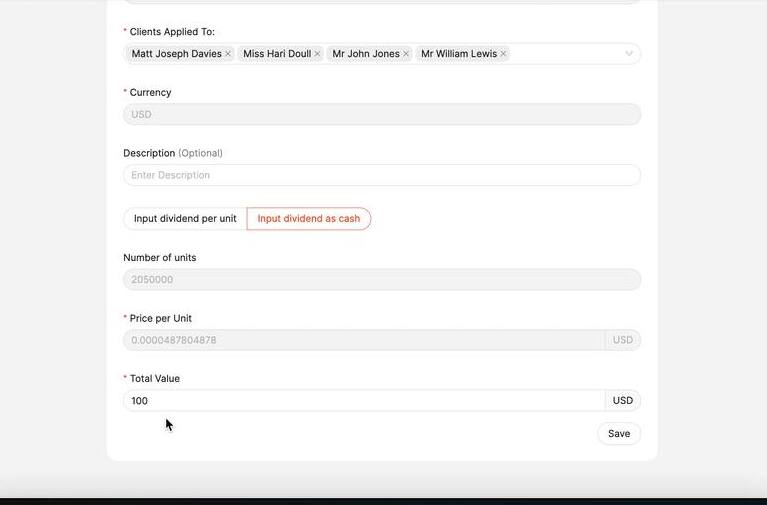
Distributions work identically for both direct and fund assets. Select the distribution sub-type in the modal (Dividend, Other – Income, or Redemption), then fill in the form. Dividend and Other – Income use the same form layout.
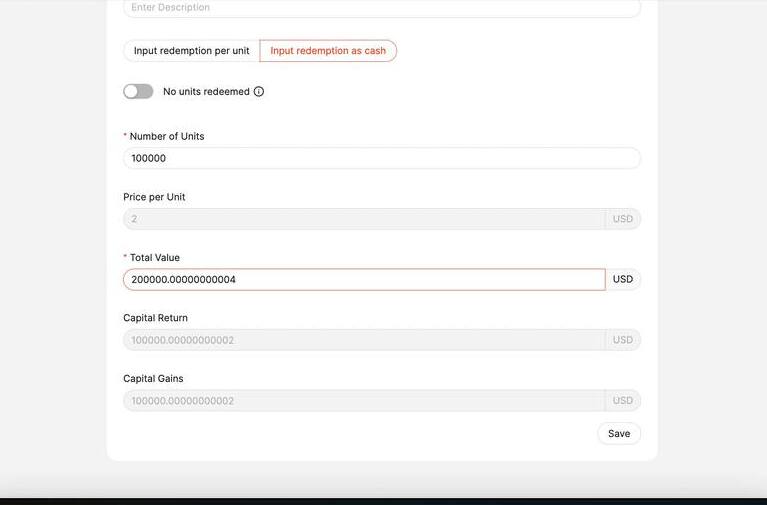
Redemption form
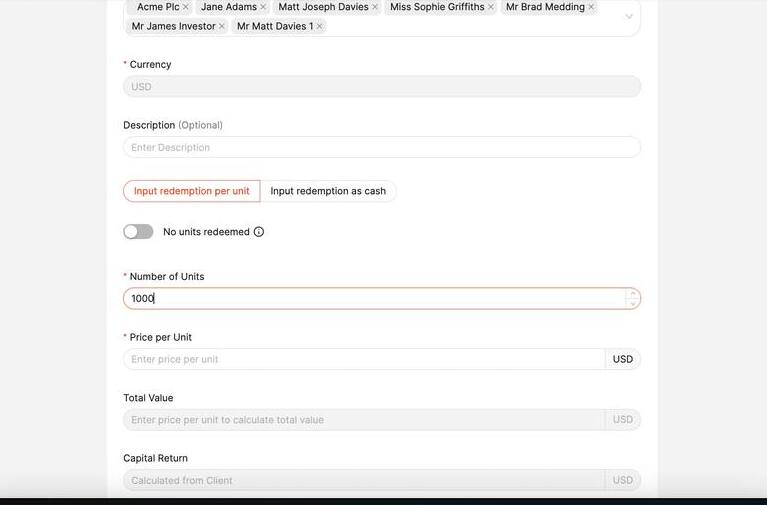
A Redemption records the return of capital to investors, along with any gain made. The system automatically calculates Capital Return and Capital Gains based on each client's original subscription data.
Fund Distribution transactions
Fund Distribution types appear when working with more complex structures that include sub-positions or feeder funds. The forms are identical to their standard Distribution equivalents, but record fund cash flows rather than direct investor cash flows. Sub-types are Fund Investment, Fund Redemption, Fund Dividend, and Fund Other – Income.
Saving a transaction
Once all required fields are complete, click Save at the bottom-right of the form. The transaction is added immediately and appears in the Transactions list. The client's portfolio metrics — including Capital Called, Paid-in Capital, NAV, IRR, and DPI/TVPI — update to reflect the new entry.
Viewing and managing transactions
All transactions are visible under Portfolio > Transactions. The tab has three sub-tabs:
Client Transactions — all transaction types except capital calls, showing client count, asset, type, amount, date, and currency.
Capital Calls — capital call transactions listed separately for tracking drawdowns and outstanding open commitments.
Requests — pending or submitted transaction requests awaiting processing.
Use the ⋯ menu on any row to access options such as deleting the transaction. Click Export to download the transaction list. To view transactions scoped to a specific asset, navigate to that asset's page and select the Ledger tab.
Was this article helpful?
That’s Great!
Thank you for your feedback
Sorry! We couldn't be helpful
Thank you for your feedback
Feedback sent
We appreciate your effort and will try to fix the article