This guide covers the Direct subscriptions import template (subscriptions-direct-template.xlsx). Use it to bulk-load investor subscription records against direct investments already in Delio. The template has 7 columns and uses share-based terminology rather than units.
Before you start
The following must exist in Delio before you import:
- The investor referenced in column C
- The direct asset referenced in column B — identified by its Unique Asset Reference
- Navigate to Portfolio in the main navigation.
- Click Actions › Data Import.
- Select Subscriptions from the left-hand menu.
- Click the Direct template card to download
subscriptions-direct-template.xlsx. - Open the file and add your data on the Direct - Investments sheet. Do not edit the README sheet or alter any column headers.
Important: Do not change any column headers, add new columns, or reformat existing cells. Any structural change to the template will cause the import to fail.
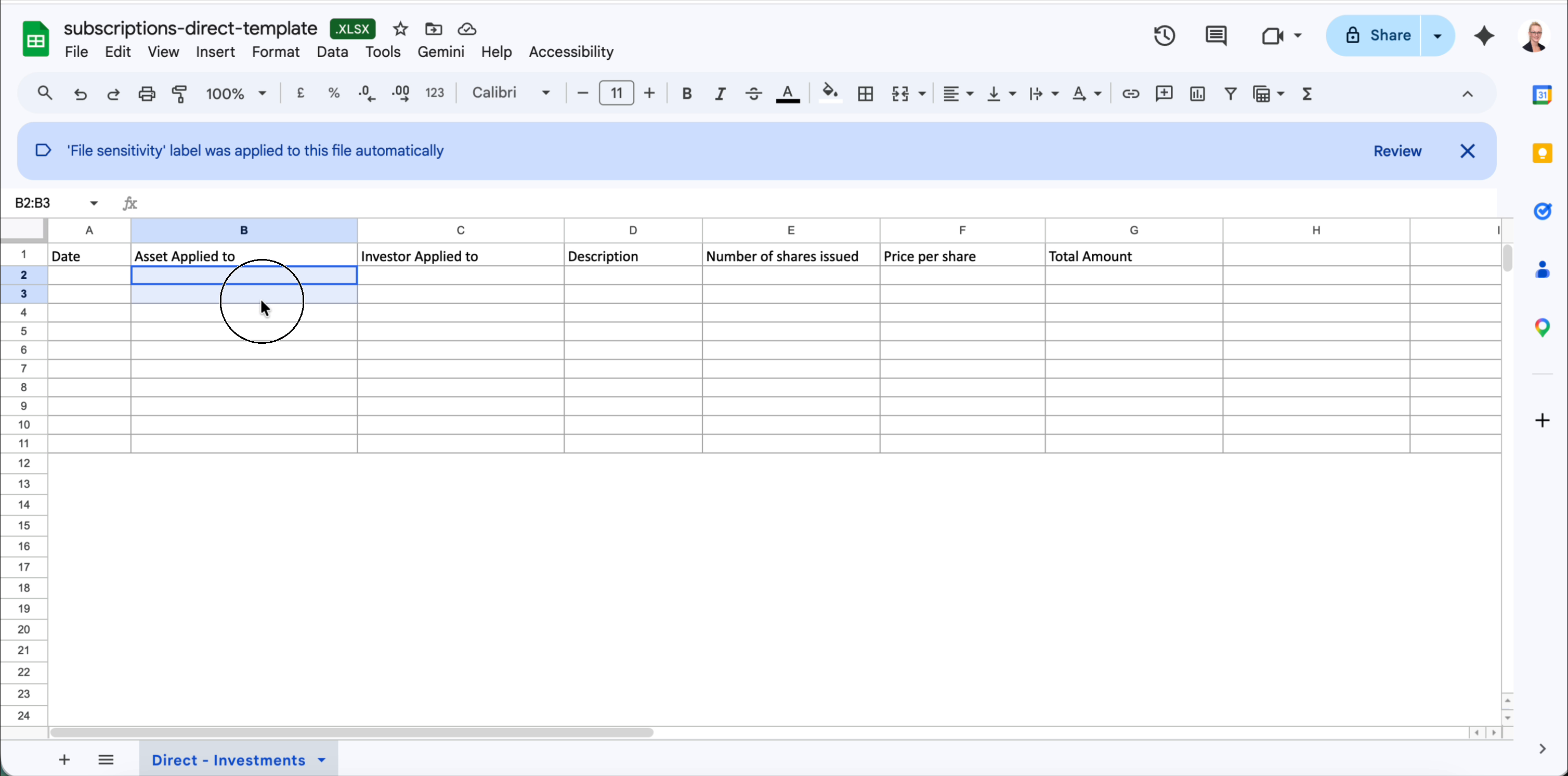
Column reference
The template contains 7 columns (A–G). All financial columns expect plain numeric values — do not include currency symbols or thousand-separator commas.
| Col | Column name | Required | Notes |
|---|---|---|---|
| A | Date | Required | The date of the subscription. Use YYYY-MM-DD format, e.g. 2024-03-31. |
| B | Asset Applied to | Required | The Unique Asset Reference of the direct asset this subscription is applied to. Must match an asset already in Delio. |
| C | Investor Applied to | Required | The unique identifier of the investor this subscription belongs to. Must match an investor already in Delio. |
| D | Description | Optional | Free-text note about this subscription record. |
| E | Number of shares issued | Optional | The number of shares issued to the investor in this subscription. Numeric value. Required if Price per share is provided. |
| F | Price per share | Optional | The price paid per share. Numeric value in the asset's reporting currency. Required if Number of shares issued is provided. |
| G | Total Amount | Required | The total subscription amount in the asset's reporting currency. Numeric value. Do not include currency symbols or commas. |
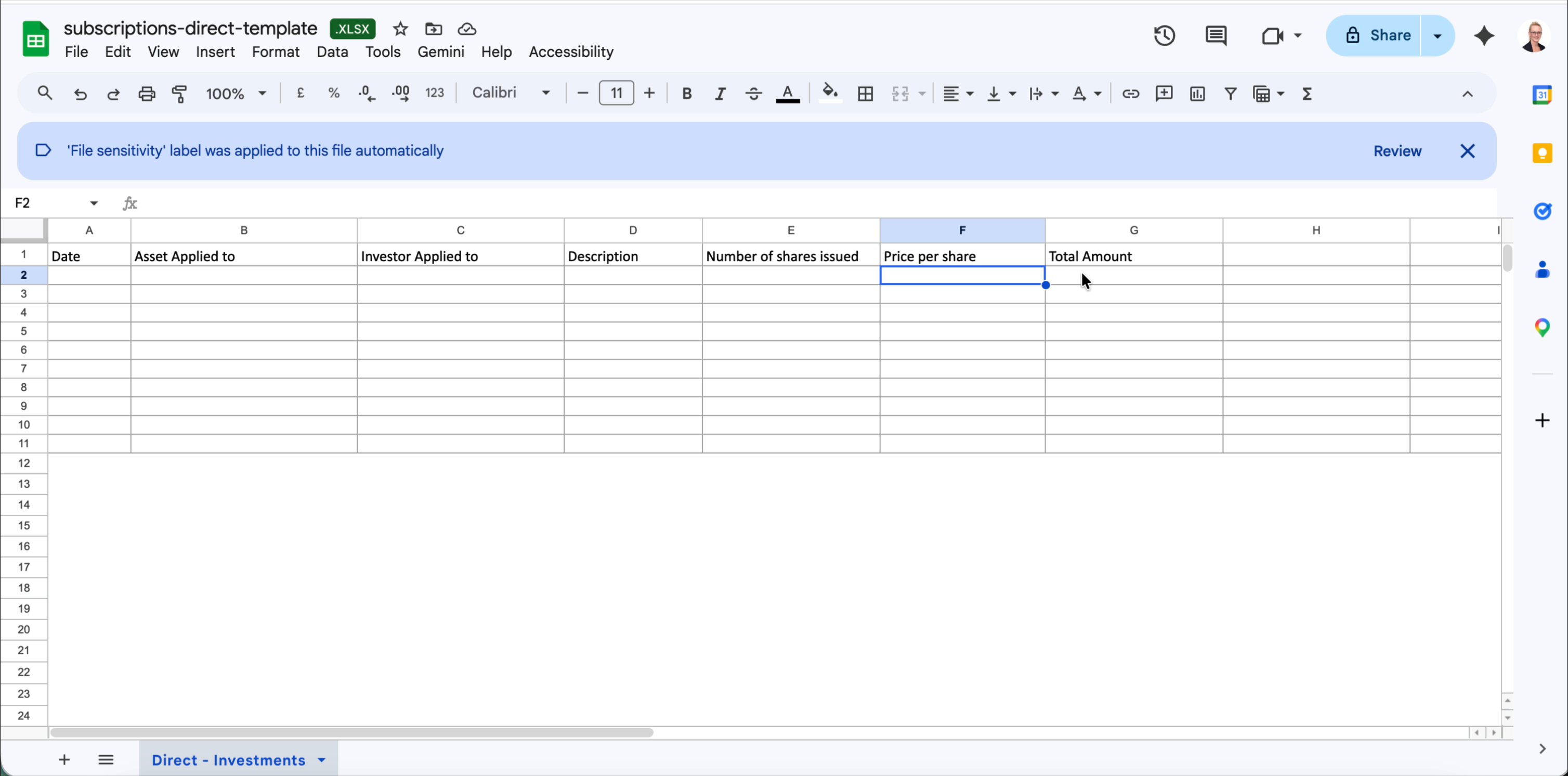
Note: The column order in the Direct template differs from the Fund template — Date comes first and Investor is in column C rather than column A. Take care when copying data across from other sources to ensure values land in the correct columns.
Uploading your completed file
- Save your populated file as
.xlsx— do not convert to CSV. - Return to Portfolio › Actions › Data Import › Subscriptions.
- Drag your file into the Upload area, or click it to browse.
- Delio will validate the file. Any rows with errors will be listed — correct them and re-upload.
Tip: If a row fails validation, only that row is rejected but no data is imported. Fix the flagged rows and re-upload the entire file again.
Was this article helpful?
That’s Great!
Thank you for your feedback
Sorry! We couldn't be helpful
Thank you for your feedback
Feedback sent
We appreciate your effort and will try to fix the article