The Fund Transactions template lets you bulk-upload money movements — investments, distributions, dividends, income, and redemptions — between a parent fund and its underlying child assets.
Before You Start
The template is built around a parent/child asset structure. The parent asset holds investor subscriptions; child assets sit beneath it as the underlying positions. All transactions in this template represent money moving between the parent and one of those children.
Make sure the following are already set up in Delio before filling in the template:
- The parent asset and all relevant child assets exist and are correctly named.
- Investor records exist with their unique reference names.
- Subscriptions are recorded against the parent asset.
Template Overview
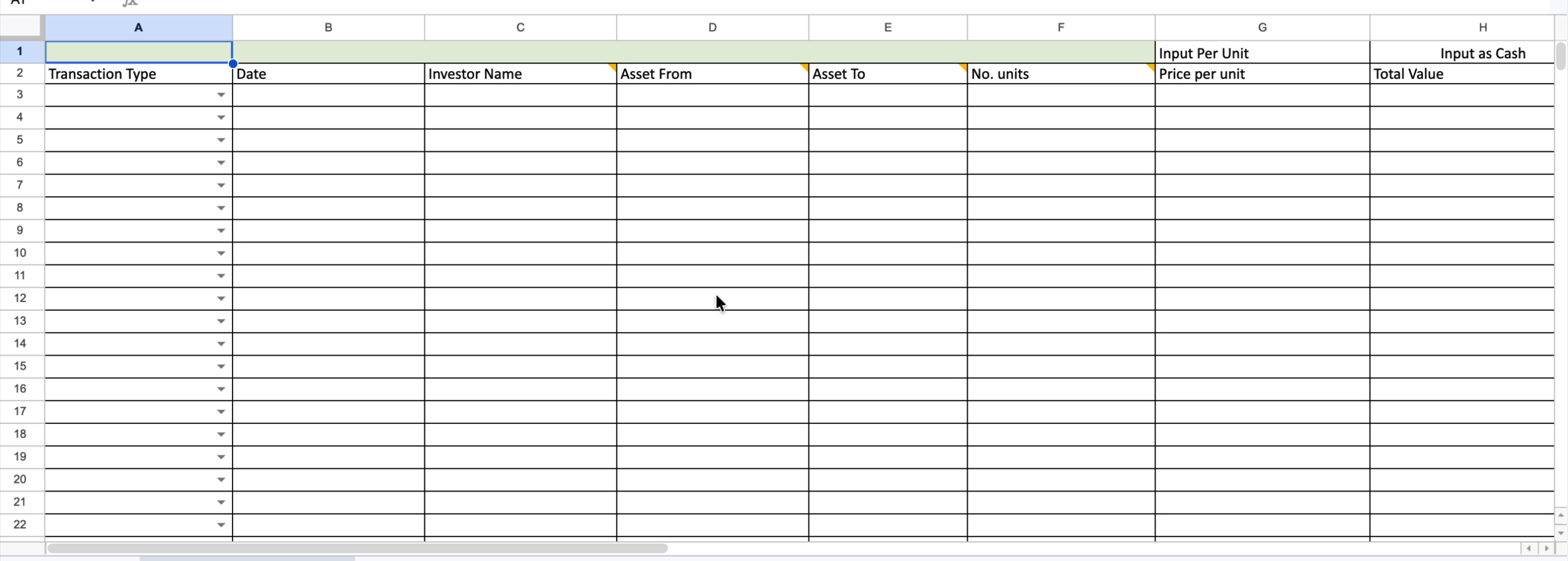
Each row in the template represents a single transaction. The spreadsheet contains the following columns:
- Transaction Type — select from the dropdown (Investment, Distribution, Dividend, Income, Redemption).
- Date — the date the transaction took place.
- Investor Name — the unique reference for the investor (must match exactly in Delio).
- Asset From — the asset the money is moving out of.
- Asset To — the asset the money is moving into.
- No. units — number of units being bought or sold (required for Investments and Redemptions only).
- Price per unit — unit price (under the "Input Per Unit" section).
- Total Value — total cash amount (under the "Input as Cash" section).
- Transaction tax — optional; does not have a functional effect at this time.
- Description — optional free-text field.
Transaction Types Explained
Choose the correct transaction type from the dropdown in column A before filling in the rest of the row. The type determines which direction money flows and which fields are required.
- Investment — the parent fund makes an investment into a child asset. Money flows from parent to child.
- Distribution — the child asset returns capital to the parent. Money flows from child to parent.
- Dividend — income paid from the child asset back up to the parent investor.
- Income — similar to Dividend; income generated by the child position distributed to the parent.
- Redemption — units are redeemed out of a child investment back to the parent.
Filling In Asset From and Asset To
The meaning of Asset From and Asset To changes depending on the transaction type.
For Asset From:
- Investments: Enter the name of the parent asset that is making the investment (e.g. Fund 1).
- Distributions and all other types: Enter the name of the child or underlying asset that is generating the distribution back up to the parent.
For Asset To:
- Investments: Enter the name of the child asset the money is going into (e.g. Private Company LLP).
- Distributions and all other types: Enter the name of the parent asset that is receiving the distribution (e.g. Fund 1).
Number of Units and Value
No. units is only required when the transaction type is Investment or Redemption — where you are buying or selling a specific quantity of units. Leave it blank for dividends, income, and distributions.
For the value columns, you only need to fill in one of the two options — the system will calculate the other:
- Enter Price per unit and the system will multiply by the number of units to produce the total value.
- Enter Total Value and the system will divide by the number of units to produce the price per unit.
Optional Fields
Transaction tax can be entered if required, though it does not have a functional effect in the system at this time. Description is a free-text field you can use for internal reference — it is not required for the import to succeed.
Uploading the Completed Template
- Complete all required rows in the template, one transaction per row.
- Save the file in .xlsx format.
- In Delio, navigate to the relevant fund and locate the transaction import option.
- Upload the completed file and confirm the import.
- Review any validation errors returned and correct the relevant rows before re-uploading.
Was this article helpful?
That’s Great!
Thank you for your feedback
Sorry! We couldn't be helpful
Thank you for your feedback
Feedback sent
We appreciate your effort and will try to fix the article