This guide covers the Capital Calls import template (capital-calls-template.xlsx). This template is for fund investments only. It contains two sheets that must both be completed: Capital Call Groups and Capital Calls. Groups let you issue one capital call to multiple investors in a single import row.
Before you start
The following must exist in Delio before you import:
- All investors referenced in the Capital Call Groups sheet
- A subscription in Delio for each of those investors against the fund asset being called
- The fund asset referenced in the Capital Calls sheet, identified by its Unique Asset Reference
- Navigate to Portfolio in the main navigation.
- Click Actions › Data Import.
- Select Capital Calls from the left-hand menu.
- Click the Funds template card to download
capital-calls-template.xlsx. - Open the file — you will see two sheets at the bottom: Capital Call Groups and Capital Calls. Both must be completed.
How groups work
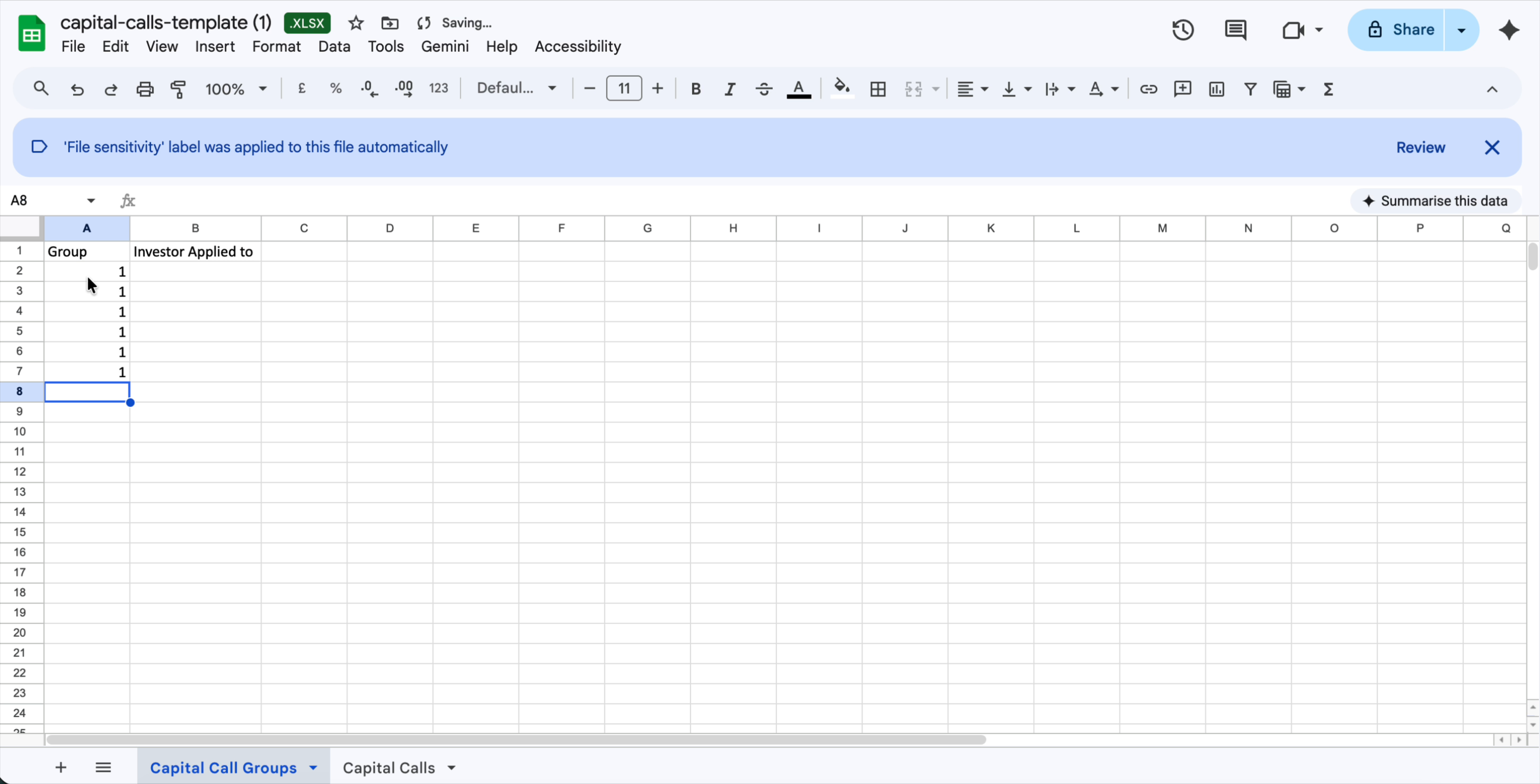
The groups mechanism lets you apply a single capital call to multiple investors at once. You define a group name (e.g. 1) and list each investor in that group as a separate row. In the Capital Calls sheet, you then reference the group name once — Delio applies the call to every investor in that group.
You can have as many groups as you need, and each group can contain as many investors as required.
Sheet 1: Capital Call Groups
This sheet defines which investors belong to each group. It has two columns.
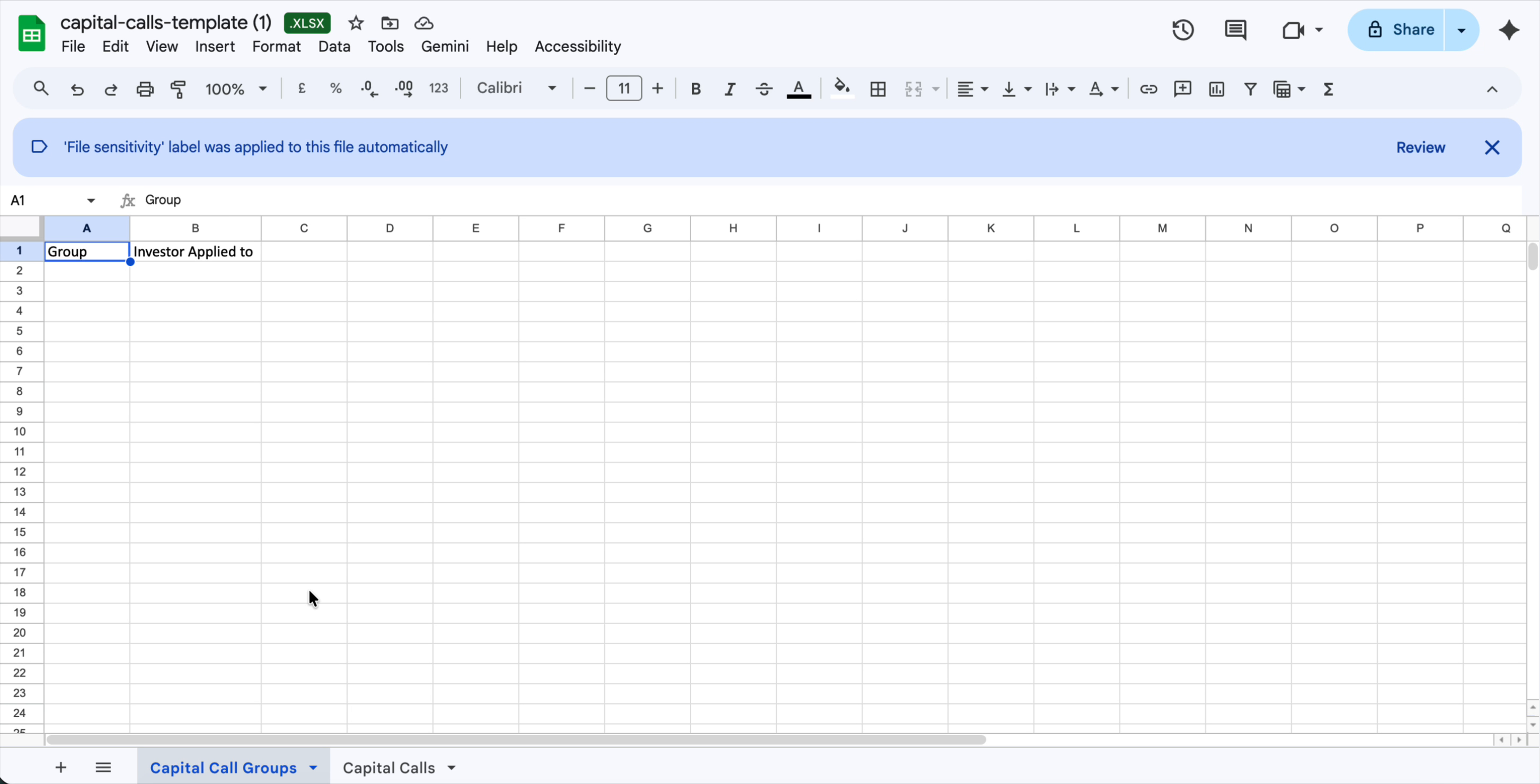
| Col | Column name | Required | Notes |
|---|---|---|---|
| A | Group | Required | A number that identifies this group of investors, e.g. 1, 2. Must be numeric — text values will cause the import to fail. Must exactly match the Group value you use in the Capital Calls sheet. |
| B | Investor Applied to | Required | The unique identifier of an investor in this group. Add one row per investor — repeat the Group value in column A for each. |
Sheet 2: Capital Calls
This sheet defines the capital call itself. Each row is one capital call, applied to the group specified in column A. The group must already be defined in the Capital Call Groups sheet.
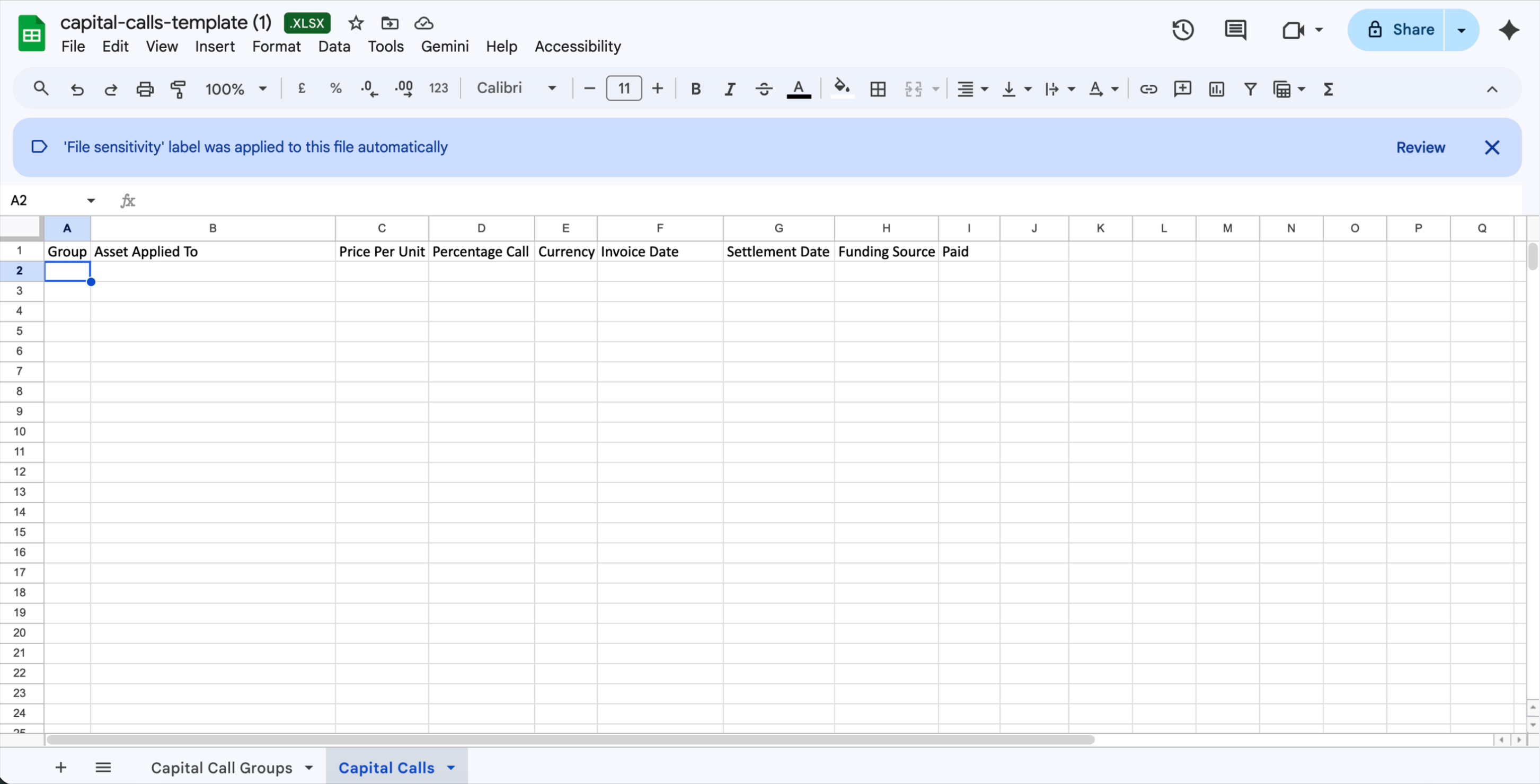
| Col | Column name | Required | Notes |
|---|---|---|---|
| A | Group | Required | The group label this capital call applies to. Must exactly match a group defined in the Capital Call Groups sheet. |
| B | Asset Applied To | Required | The Unique Asset Reference of the fund asset this call is against. Must match an asset already in Delio. |
| C | Price Per Unit | Required | The price per unit for this capital call. Numeric value. |
| D | Percentage Call | Required | The percentage of each investor's commitment being called in this draw. Numeric value, e.g. 25 for a 25% call. |
| E | Currency | Required | ISO currency code, e.g. USD. This is predefined by the asset itself, but the import requires it to be explicitly populated. |
| F | Invoice Date | Required | The date the capital call was invoiced. Enter as a date-formatted cell. |
| G | Settlement Date | Required | The date the capital call was settled. Enter as a date-formatted cell. This can differ from the Invoice Date — Delio uses the Settlement Date as the primary date when displaying information. |
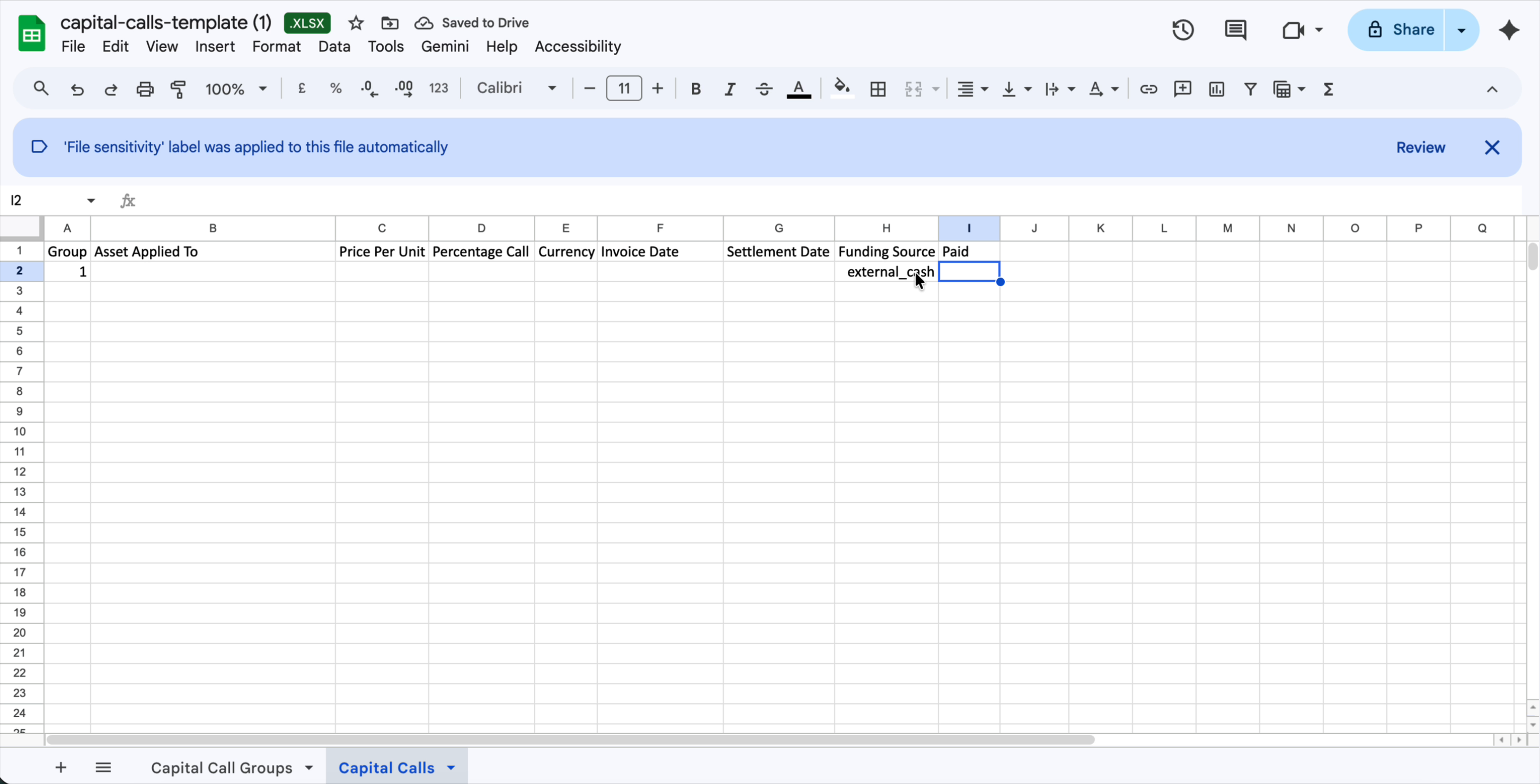
| H | Funding Source | Required | Always enter external_cash. Capital calls represent cash coming in from outside the system. |
| I | Paid | Required | Yes or No. See below for the difference in behaviour. |
Paid: Yes vs No
The Paid column determines whether Delio treats the capital call as settled on import, or flags it as outstanding for manual follow-up in the platform.
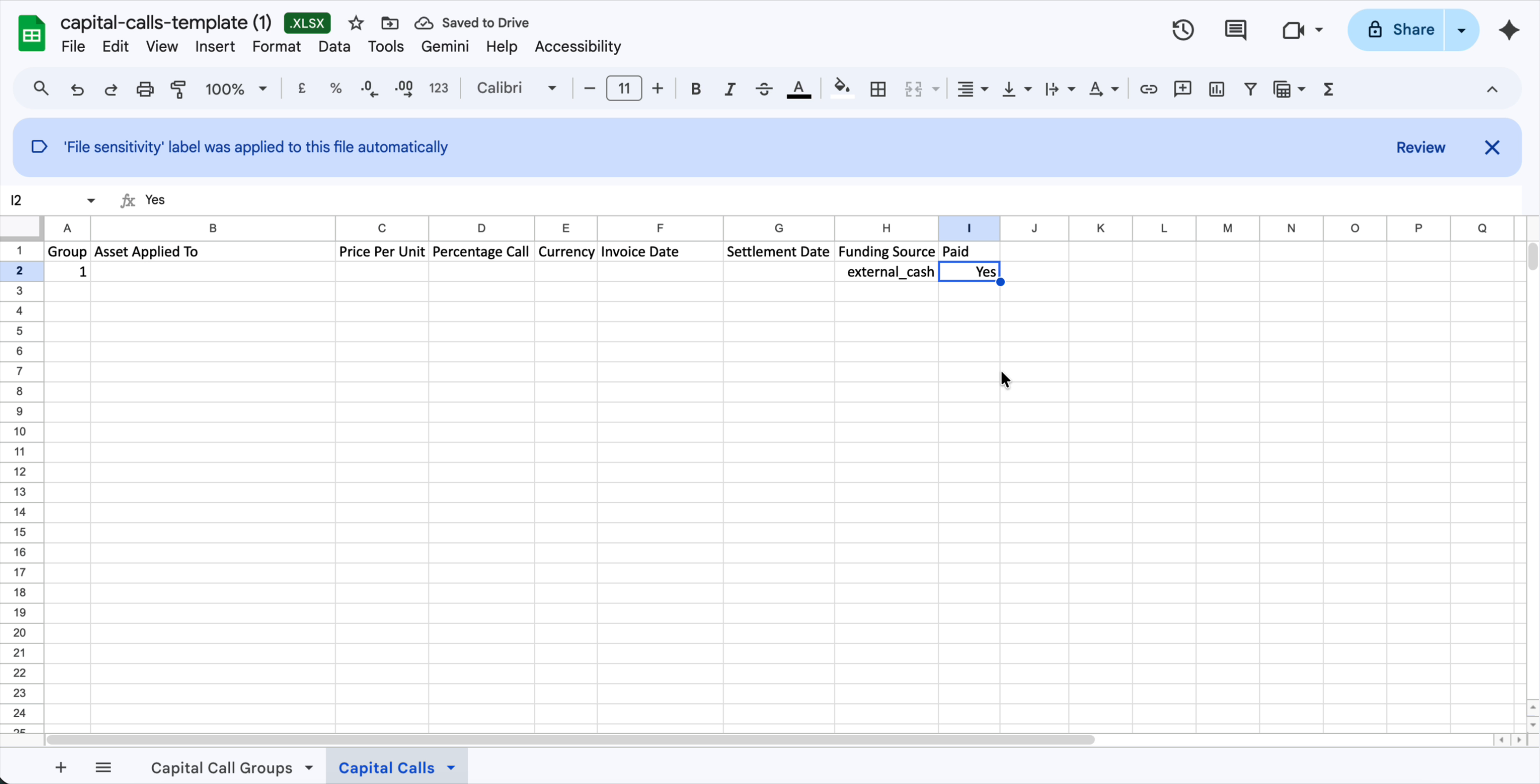
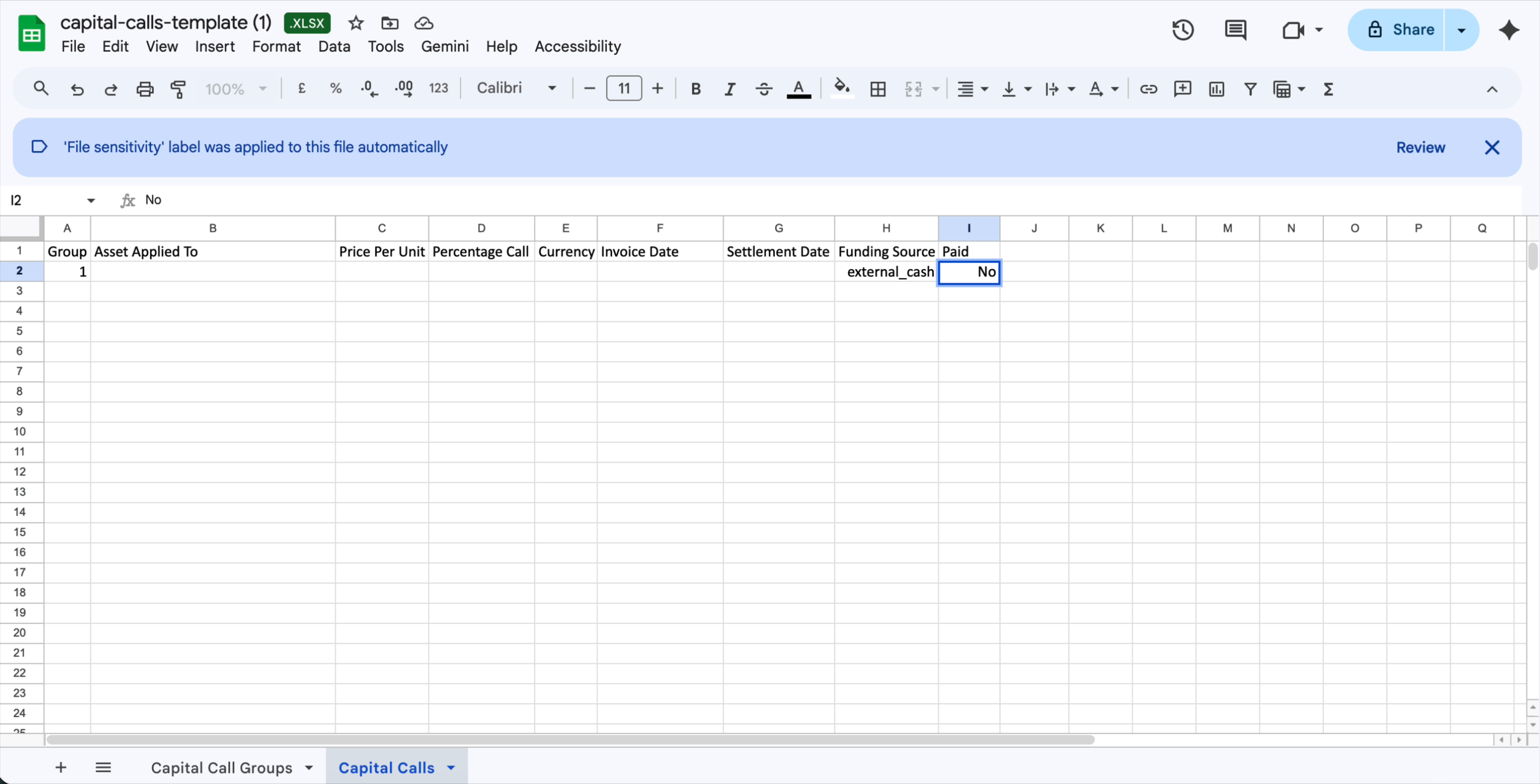
Yes. If you are importing a new call that is yet to be collected, use No — Delio provides an interface within the platform to mark each investor's payment as received individually.Uploading your completed file
- Ensure both the Capital Call Groups and Capital Calls sheets are fully populated.
- Save the file as
.xlsx— do not convert to CSV. - Return to Portfolio › Actions › Data Import › Capital Calls.
- Drag your file into the Upload area, or click it to browse.
- Delio will validate both sheets. Any errors will be listed — correct them and re-upload.
Was this article helpful?
That’s Great!
Thank you for your feedback
Sorry! We couldn't be helpful
Thank you for your feedback
Feedback sent
We appreciate your effort and will try to fix the article