Geographic Locations let you define the set of geographies available when classifying assets in your portfolio. You can add as many locations as you need, enable or disable them at any time, and rename or remove them as your portfolio evolves.
Opening Geographic Locations
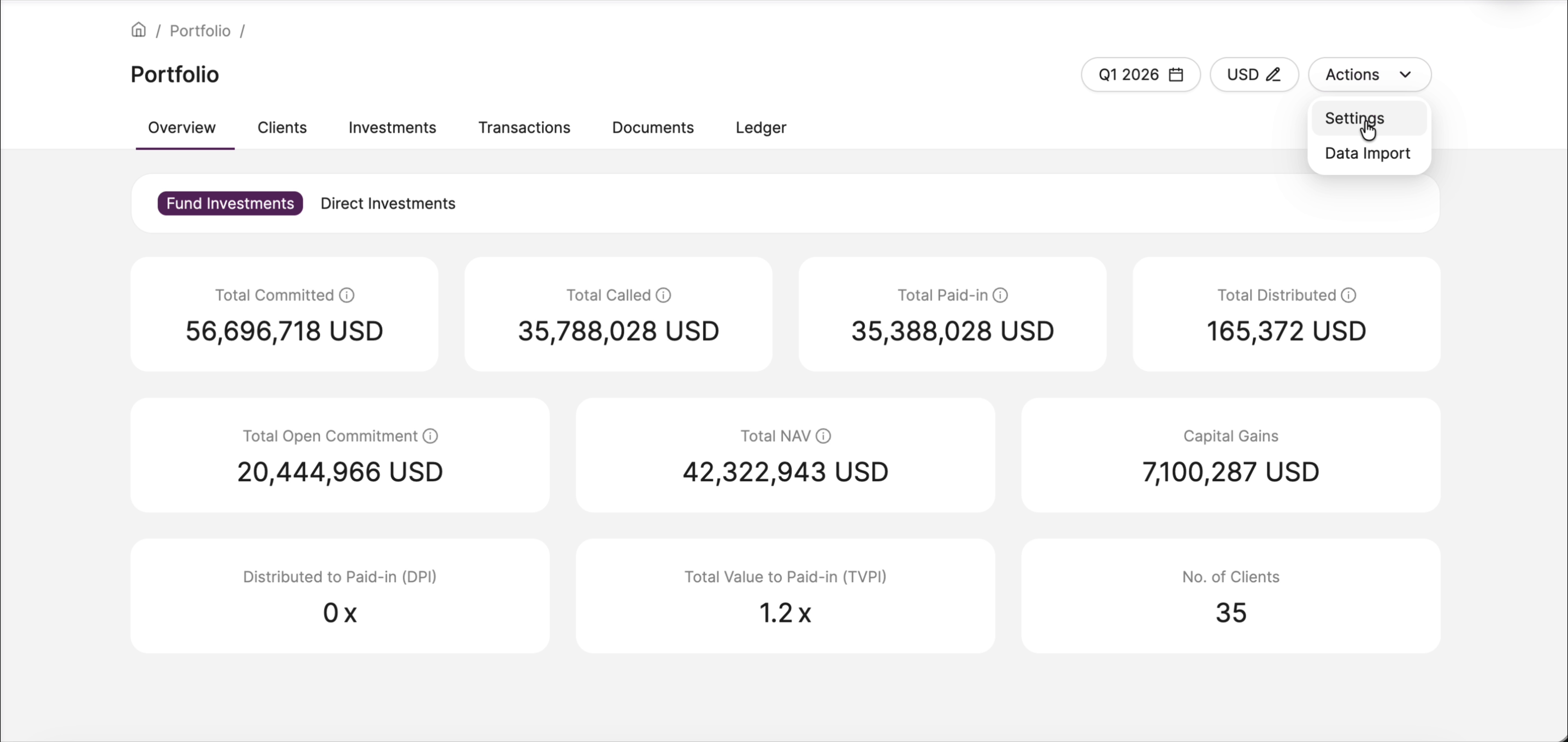
- Navigate to Portfolio in the main navigation.
- Click the Actions button in the top-right corner.
- Select Settings from the dropdown.
- Click the Geographic Locations tab.
Viewing your locations
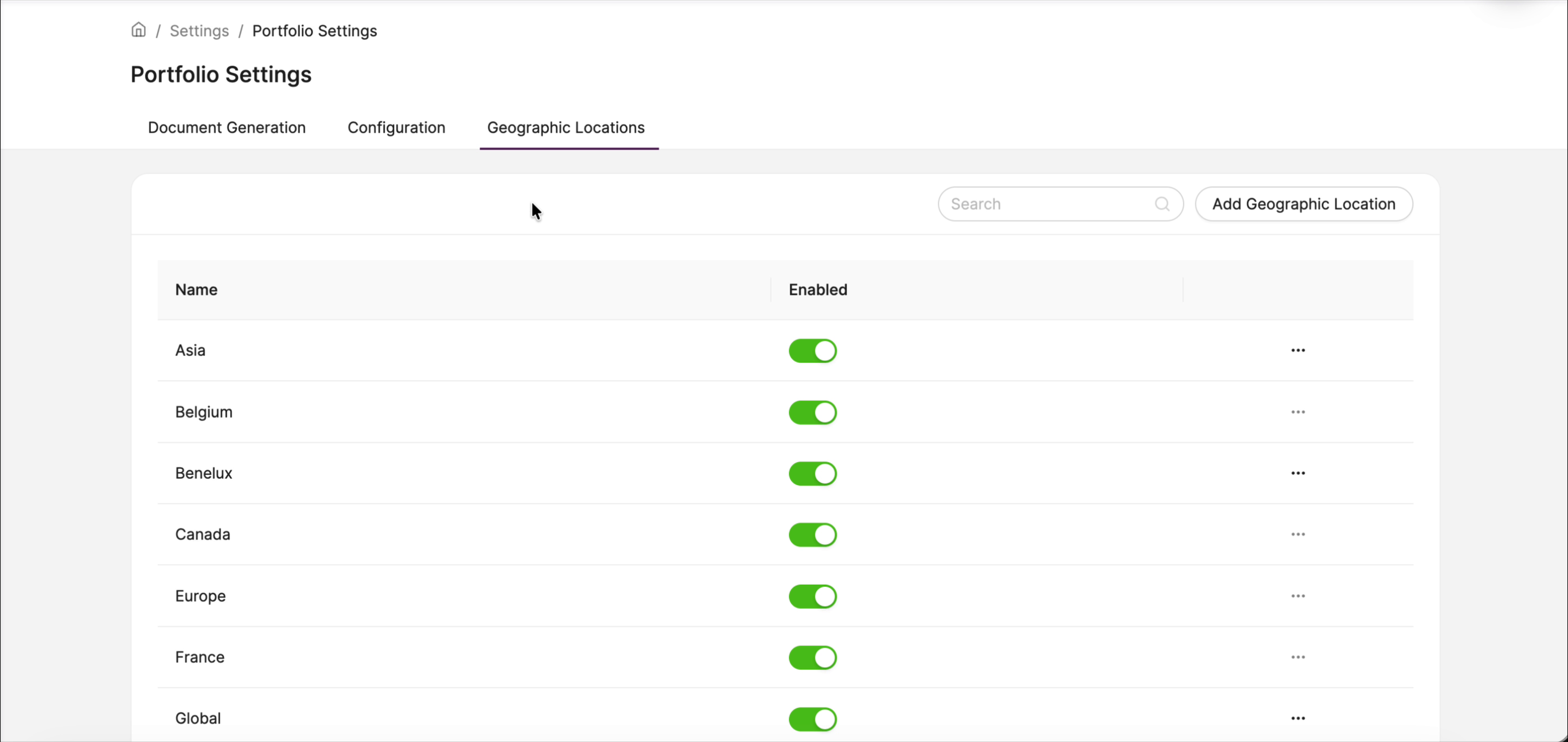
The Geographic Locations tab lists all locations configured for this portfolio. Each entry shows its name and an Enabled toggle. Locations are listed alphabetically across paginated pages — use the search bar to find a specific entry quickly.
Adding a location
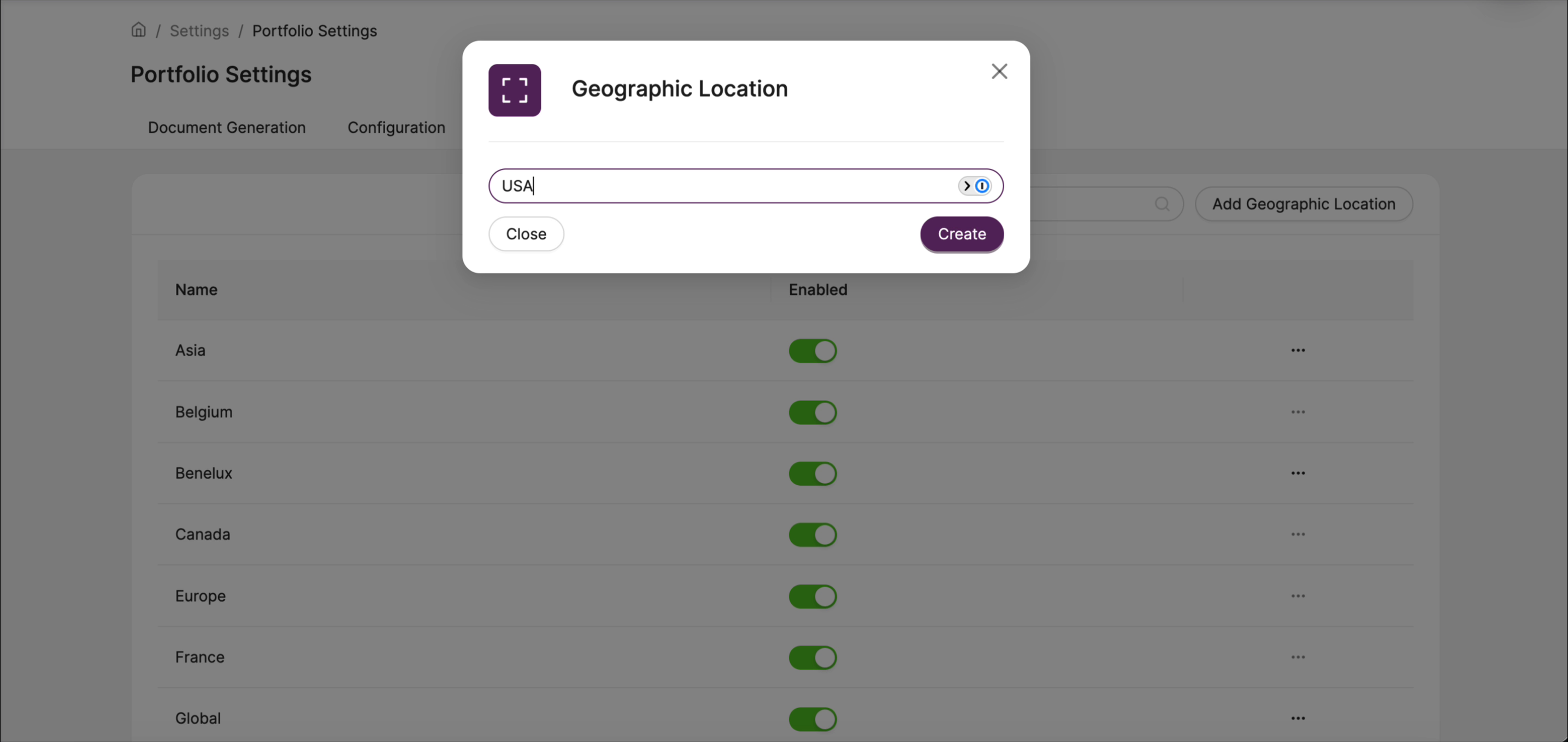
- Click Add Geographic Location in the top-right corner.
- Type the name of the location in the text field.
- Click Create.
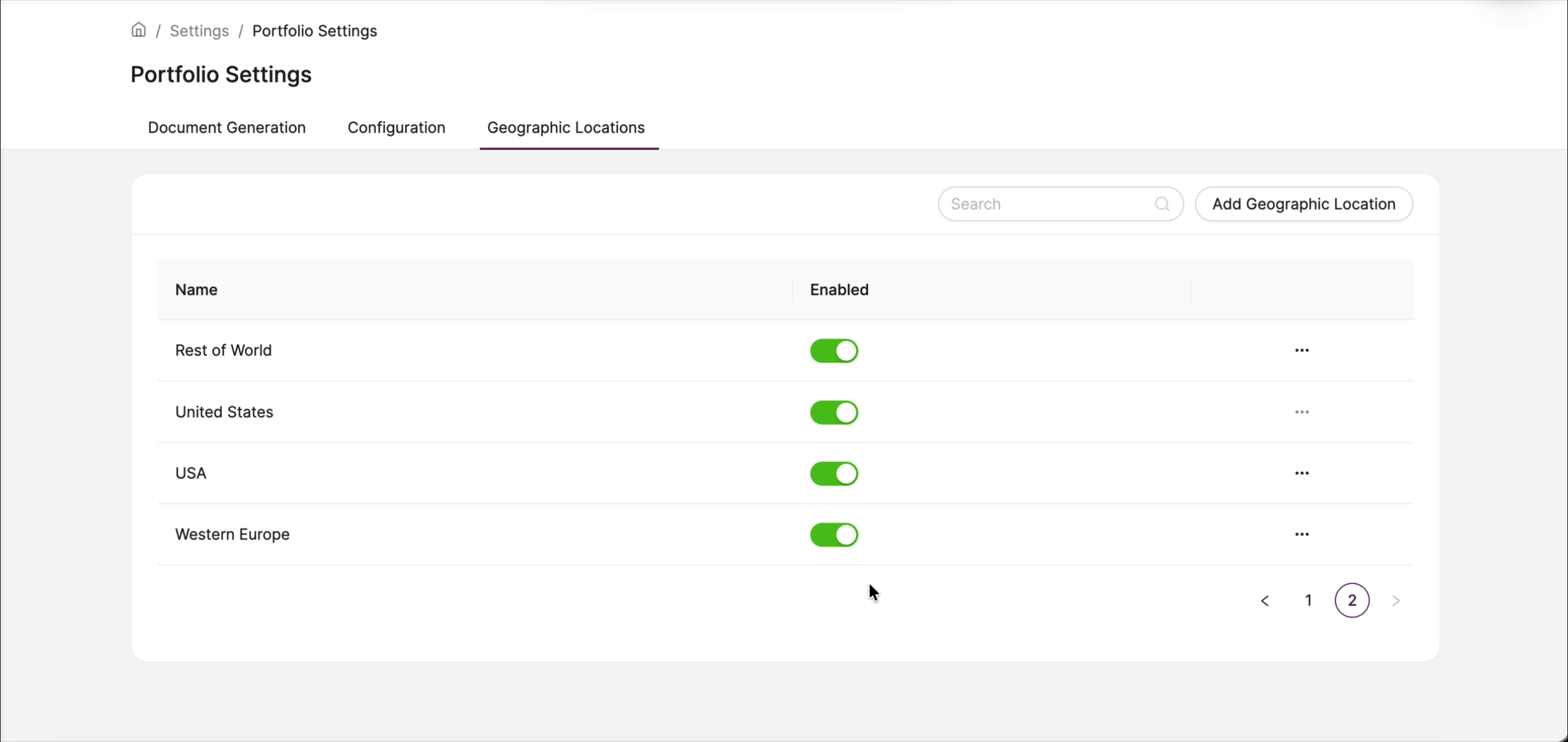
The new location appears in the list immediately and is enabled by default.
Enabling and disabling locations
Use the toggle in the Enabled column to turn a location on or off. Disabling a location removes it from selection options across the platform but does not delete it or affect any existing data that already uses it.
Editing or deleting a location
Click the … menu to the right of any location row to access rename and delete options.
Was this article helpful?
That’s Great!
Thank you for your feedback
Sorry! We couldn't be helpful
Thank you for your feedback
Feedback sent
We appreciate your effort and will try to fix the article